In VibeMV, character consistency starts in AI Producer, where you set the Main character for the music video. VibeMV uses that input to prepare a Creative plan with references and directions for the individual Shots. After applying the Creative plan, you check the actual Start frames and videos in the Workspace.
You do not need to write a separate character sheet for every Shot before using the tool. The useful decisions are who the lead is, which details should remain recognizable, and where the outfit or setting may change. References guide the result; appearance can still vary across angles and motion, so review the generated media.
1. Set the Main character in AI Producer
After preparing your song and Shot layout, open AI Producer. Under Main character, choose the input that fits your project:
- Upload character image when you already have a picture of the performer or character you want to use. Add Character notes to explain the details that matter.
- Character notes alone when you are starting from a description. VibeMV prepares a Character reference from that description as part of creating the Creative plan; inspect that reference before proceeding to Start frames.
With an uploaded image, notes add direction to that image. Keep them compatible with the person you selected. For example:
Use the uploaded person as the lead. Keep their face and outfit recognizable across performance shots.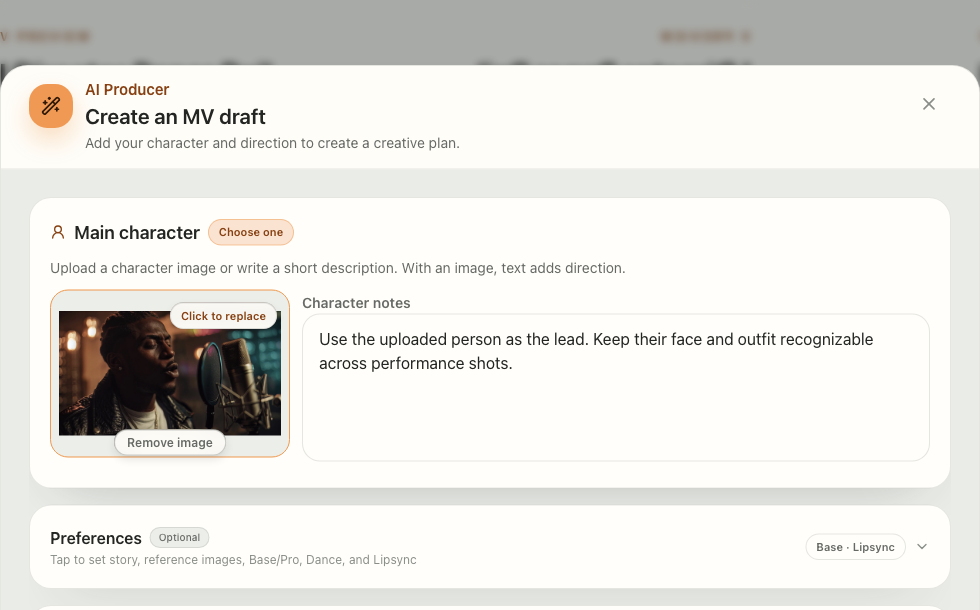
Actual VibeMV controls rendered locally with demonstration media and example text. This shows where to enter the direction, not a new generation test. The article cover is an editorial illustration.
A reference close to the intended look makes the input easier to judge. Check whether the face, hairstyle and important clothing are visible. If you already know the lead must wear a particular outfit, choose or describe that look here rather than giving conflicting versions in later instructions.
2. Separate the person from the setting and other references
Open Preferences for the rest of the Creative brief. Use Story direction for what happens in the music video and how its scenes relate. Use Reference images for additional people, places, objects, alternate views or visual style.
Each added reference has an optional How should this image be used? field. This is where you explain which part of that image matters. A photo containing another person might be useful for its room or lighting without being the identity you want to generate.
| Where to write | What belongs there | Written example |
|---|---|---|
| Main character → Character notes | The lead and recognizable appearance | Use the uploaded person as the lead. Retain their face and outfit in performance shots. |
| Preferences → Story direction | The overall scene progression and intended changes | One lead moves from a rehearsal room to a rooftop. Keep the outfit while the location and lighting change. |
| A Reference image → How should this image be used? | The specific use of that additional image | Use this image for the setting and lighting only. Keep the Main character. |
These are examples of what to put in the actual fields, not prompts claimed to have produced a tested sequence. The Main character image is a separate input from the numbered additional Reference images; describe each additional image in its own use field.
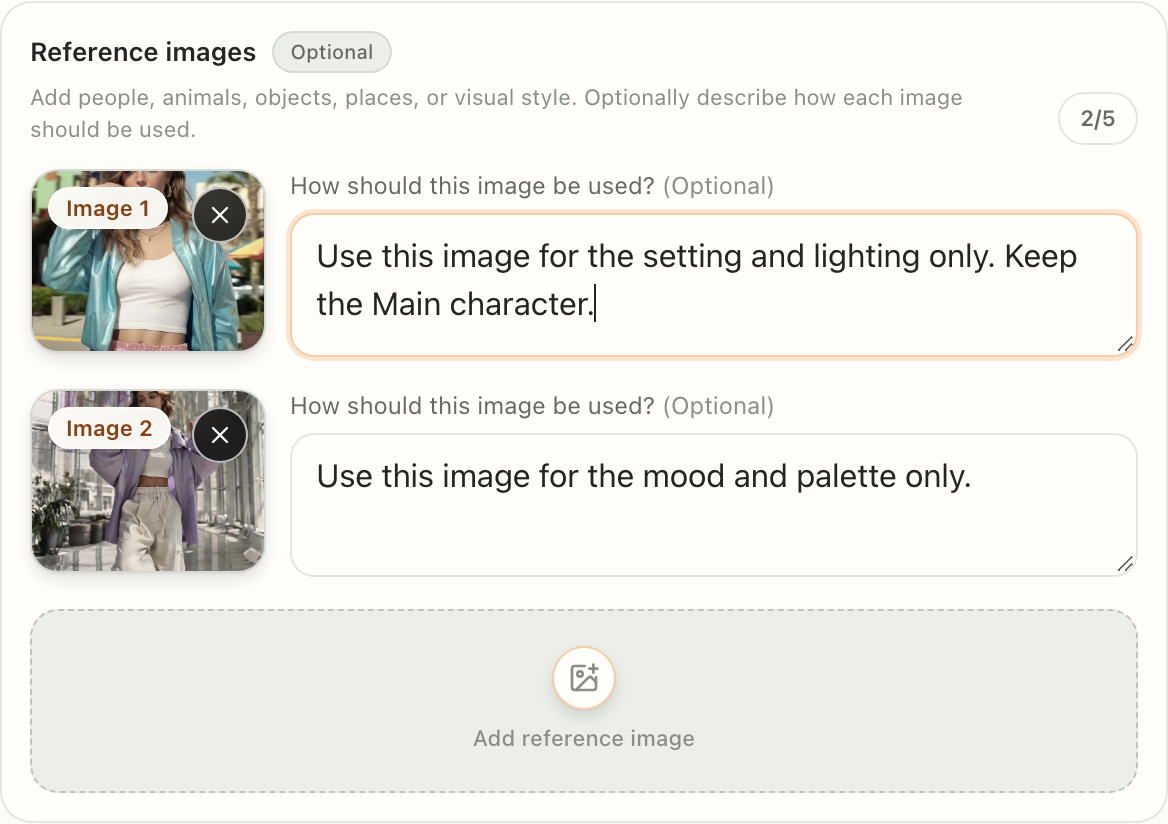
The actual Reference images section in the local UI demonstration. The two additional images have different use instructions; they are not presented as two versions of the lead or as generated results.
You can plan a costume change. State where it belongs in Story direction, and check the relevant Shot descriptions later. Keeping a character recognizable does not require every scene to have the same background, camera angle or lighting.
3. Review the Creative plan before generating the whole sequence
Choose Create new creative plan. In Review creative plan, inspect the Character reference, the other Creative plan references, and each Shot's Image prompt and Video prompt.
For the character, check three things:
- The reference represents the intended lead. If the selected person is wrong, return to the character input and replace it before creating a new Creative plan.
- The Shot descriptions fit the requested appearance. Look for contradictory wardrobe or identity details, especially when moving between performance and story scenes.
- Changes have a reason in your brief. A rooftop scene may change framing and light while keeping the performer recognizable; an empty landscape does not need a visible face.
Applying the Creative plan copies its Shot directions, settings and selected references into the Workspace. The reference selection can differ between Shots; the same reference pool does not mean every image should be used in every Shot. Applying a Creative plan does not itself replace the existing media with newly generated results.
To review the appearance before committing to all videos, use Apply and generate all Start frames. Generation continues in the Workspace. You can also choose Apply creative plan and work on individual Shots there. Creating or applying a Creative plan is free; generating Start frames and videos uses credits, so check the confirmation before starting media work.
4. Check the actual Start frames in the Workspace
A Character reference is an image in Creative plan references that guides the lead's identity and appearance. A Start frame is the actual starting image for one Shot: the person, outfit, pose, composition and background together. A good reference is useful input, but the Start frame is what you need to inspect before motion.
Compare the related Shots in the Workspace:
- Does the intended lead remain recognizable where they appear?
- Are clothing and accessories consistent within scenes that should match?
- Do the differences follow the changes requested in the Creative brief?
- Is the face readable enough for the intended performance, including a singing Shot?
The 12-shot storyboard breakdown is useful for studying recurring places and performance images. It is a completed-work analysis, not evidence that every face is identical. Use your own generated Start frames to judge the character in your project.
5. Fix the affected Shot at the right stage
Expand a Shot in the Workspace and choose Image. Edit the image prompt for that Shot and check its Reference Images. Those references guide the still and do not replace the Start frame. Click Generate image when you need a new starting image. These are the per-Shot controls to check when that Shot's starting image looks wrong; you do not have to rewrite the whole music video's direction for one local problem.
| What you see | What to inspect in VibeMV | Next step |
|---|---|---|
| The lead is wrong throughout the planned direction | Main character input and Character reference in AI Producer | Correct the character input, create and review a new Creative plan, then decide where to apply it. |
| One Start frame shows the wrong person or outfit | That Shot's Image description and Reference Images in the Workspace | Remove conflicting directions or replace an unsuitable reference, then evaluate a new image for that Shot. |
| The Start frame is right, but the person drifts during motion | That Shot's Video prompt, action and camera movement | Simplify the request where appropriate and evaluate that Shot's video again. The Video prompt is optional. |
| A cutaway has no visible lead | The Shot's intended role | Keep a useful setting, object or detail shot when it belongs in the sequence; a face is not required in every image. |
After changing the starting image, evaluate the video based on that image. A reference or prompt edit does not retroactively fix a clip you already generated. New image and video generations use their applicable credits.
Use the shot prompt guide when you need help wording one image or movement request. Use the storyboard template when you need to decide what the sequence should contain.
Frequently asked questions
How do I use the same character across Shots in VibeMV?
Set the Main character in AI Producer with an uploaded image or Character notes. Review the Character reference and Shot descriptions in the Creative plan, apply it, then check the Start frames in the Workspace before generating videos. References guide appearance; they do not guarantee identical results.
Is a Character reference the same as a Start frame?
No. A Character reference guides the person's identity and appearance. A Start frame is the actual starting image for one Shot, including its framing, pose, outfit and setting. Check the Start frame before generating that Shot's video.
Must I regenerate the entire music video if one character Shot looks wrong?
No. In the Workspace, inspect the affected Shot. If its Start frame is wrong, check its references and image description. If the still is right but the video drifts, review the Video prompt and evaluate that Shot again. New image and video generations use credits.
For the full song-to-export process, read the complete AI music video tutorial, or start from your song.
More Posts
AI music video prompts: shot examples and templates
Write AI music video prompts for the intro, verse, chorus and bridge. Use a compact shot structure, camera directions and clearly labeled planning examples.
AI music video storyboard: 12-shot example and template
Plan an AI music video storyboard with 12 timed shots, real finished-video frames and a free CSV template. Learn how performance and story scenes fit together.
DistroVid Spotify Music Video Guide (2026)
Review DistroVid pricing, Spotify eligibility, file requirements, delivery steps, timing, rights, and the cases where another route is better.