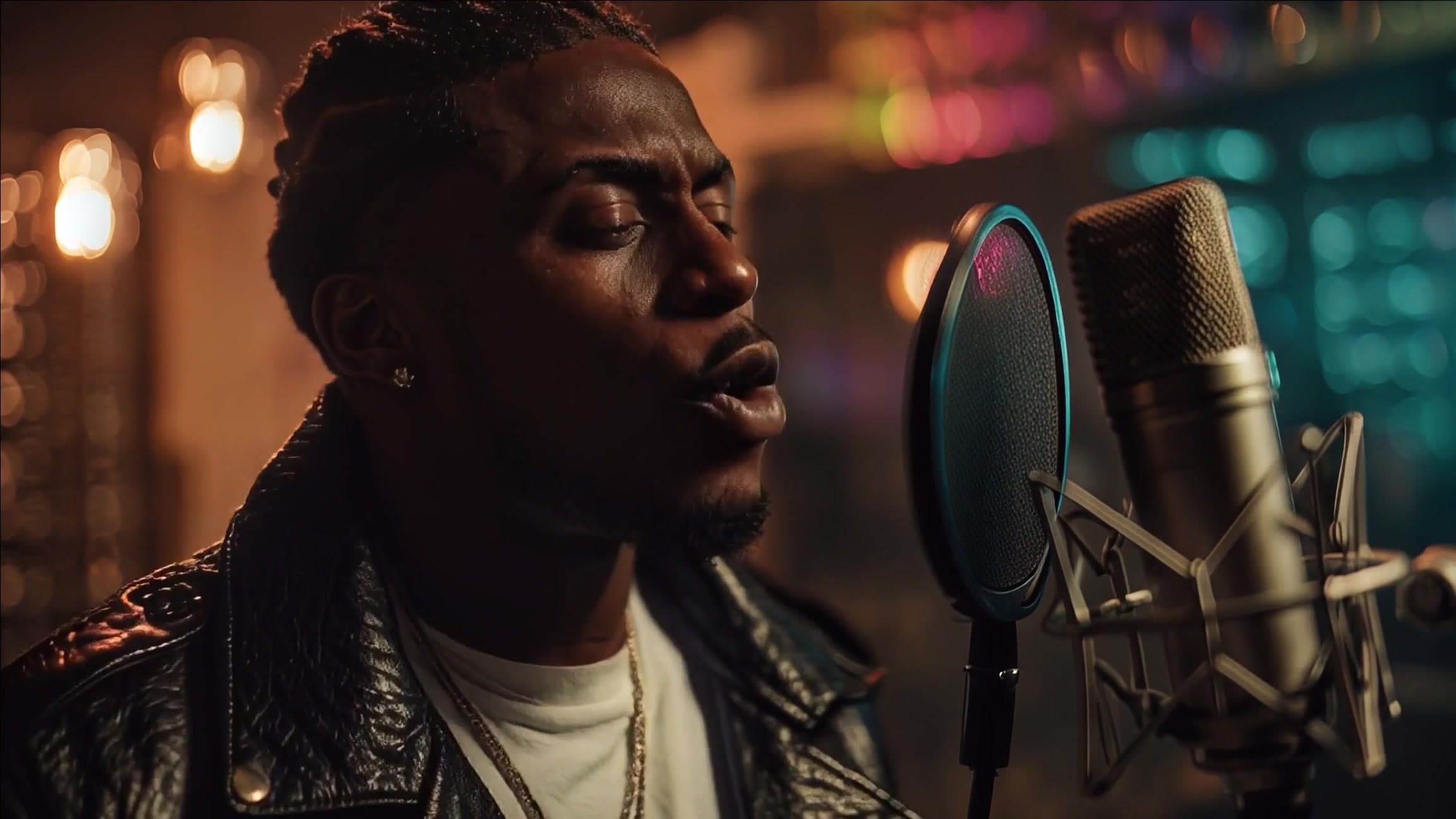
How to Make a Music Video with AI: Complete Guide [2026]
Learn how to make a music video with AI in 6 simple steps. From audio upload to final export, create professional visuals without filming or editing skills.

![How to Make a Music Video with AI: Complete Guide [2026] How to Make a Music Video with AI: Complete Guide [2026]](/_next/image?url=%2Fimages%2Fblog%2Fhow-to-make-music-video-with-ai.png&w=3840&q=75)
Making a music video used to require a production crew, a location budget, and weeks of post-production editing. For independent artists, the math was brutal: spend $5,000 to $50,000 on a single video, or skip visual content entirely and hope your music could compete without it. Neither option was good. The result was that most musicians released tracks with nothing more than a static cover image or a lyric slideshow.
AI has fundamentally changed this equation. In 2026, you can upload an audio file, describe a visual direction, and generate a complete music video with lip-synced characters, beat-matched transitions, and coherent visual storytelling. The cost ranges from free to about $50. The active time investment is under 30 minutes.
This guide walks through the entire process in six concrete steps. We cover audio preparation, AI analysis, storyboard customization, generation modes, visual styling, and final export. Whether you are releasing your first single or producing weekly content for social platforms, this is the complete reference for making music videos with AI.
Key Takeaways
- AI music videos cost $0-$50 compared to $5,000-$50,000 for traditional production, making professional visuals accessible to every artist
- Active work takes 20-30 minutes — upload audio, customize the AI-generated storyboard, set your visual style, and generate
- No editing skills required — the AI handles audio segmentation, scene composition, and video rendering
- Two generation modes — Normal mode for beat-synced visuals and Lipsync mode for character performances matched to vocals
- Multi-platform output — generate in 16:9 for YouTube or 9:16 for TikTok, Instagram Reels, and YouTube Shorts from the same project
- Per-segment control — customize, regenerate, or switch modes on individual sections without redoing the entire video
Why Musicians Are Turning to AI for Music Videos
The shift to AI video generation is not a gimmick or a trend. It is a structural change in how visual content gets made, driven by economics, speed, and a quality threshold that has finally crossed into professional territory.
The Cost Gap Has Collapsed
Traditional music video production involves location scouting, crew hiring, equipment rental, filming days, and weeks of post-production. A basic shoot with a small crew runs $5,000 to $10,000. A polished production with effects, multiple locations, and professional color grading lands between $20,000 and $50,000. Major label releases regularly exceed $100,000.
AI music video generation costs between $0 (free tiers and trials) and roughly $50 for a full-length video on a paid plan. VibeMV's Hobby plan at $19/month includes 600 credits — enough for approximately one full-length music video with credits remaining. For a detailed cost breakdown, see our analysis of the cheapest way to make a music video.
This is not a quality-for-cost tradeoff in the way it was even two years ago. The output is genuinely usable for professional releases.
The Time Gap Has Collapsed Too
Traditional production timelines run from several weeks to several months. Pre-production alone — concept development, storyboarding, location scouting, talent casting — takes one to three weeks. Filming requires at least one full day, often two or three. Post-production (editing, color grading, visual effects, sound design) adds another one to four weeks.
With AI, the active work takes 20 to 30 minutes. Upload your audio, review the AI-generated storyboard, customize your visual direction, and start generation. Processing takes 5 to 15 minutes depending on track length and server load. If you want a quick overview of the fastest possible workflow, our guide to creating an AI music video in 5 minutes covers the streamlined approach.
Quality Has Reached a Professional Threshold
The evolution of AI video generation quality follows a clear trajectory:
- 2023: Experimental and novelty-grade. Warping artifacts, incoherent motion, useful mainly as artistic effects or abstract backgrounds.
- 2024: Usable for social media. Short clips with consistent subjects became possible, but full-length videos still showed visible artifacts and inconsistencies.
- 2025: Professional-grade for music video applications. Smooth motion, coherent scenes across segments, and functional lip-sync made AI videos indistinguishable from stylized animated content.
- 2026: Standard production tool. 720p-1080p output with optional upscaling, reliable lip-sync, beat-accurate visual transitions, and per-segment creative control.
The quality is not identical to live-action filming. It is a different visual language — one that audiences increasingly recognize and accept, particularly on platforms like YouTube and TikTok where stylized and animated content performs alongside live-action.
Democratization Is Real
The most significant impact is on independent artists. Before AI video tools, a musician without label backing had two choices: spend a meaningful percentage of their music budget on a single video, or compete without visual content at all. Now, the same artist can produce a video for every release, test multiple visual directions for the same track, and create platform-specific versions — all within the budget of a single traditional production day.
For a deeper look at how independent musicians are using these tools, see our guide on AI music video for independent artists.
What You Need to Get Started
Before opening any tool, gather these three things. Having them ready keeps the actual creation process efficient.
1. Your Audio File
You need a finished audio track exported in a standard format. Most AI music video generators accept MP3, WAV, and AAC files. VibeMV also supports M4A. File size limits vary by platform — VibeMV accepts files up to 100 MB with track lengths between 3 seconds and 5 minutes.
WAV is the best format for AI analysis. Lossless audio preserves the full dynamic range that AI models use for audio analysis, vocal detection, and energy mapping. MP3 at 320kbps works well for most cases. Avoid heavily compressed files below 128kbps — the lost audio detail reduces segmentation accuracy.
Make sure your mix is clean before uploading. If your vocals are buried under reverb or competing with a loud instrumental mix, the AI will struggle to isolate vocal sections for lip-sync and to detect beat patterns accurately.
If you want a deeper look at the process of combining your audio with AI-generated visuals, see our guide on adding audio and video together with AI.
2. Creative Direction (Optional but Helpful)
Think about mood, color palette, setting, and whether you want abstract visuals or character-driven content. You do not need a formal storyboard. Even a rough idea — "dark urban night scenes with neon lighting" or "bright coastal landscapes with warm tones" — gives you a starting point that speeds up the customization step.
If you plan to use Lipsync mode, have a character reference image ready. This can be an AI-generated character, an illustration, or a photo. Front-facing images with clearly visible mouths produce the best results.
3. The Right Tool for Your Use Case
Not all AI video tools are built for music. General-purpose generators like Runway and Pika produce high-quality video but lack music-specific features like audio segmentation, smart audio analysis, and automatic lip-sync. Music-focused tools handle these automatically.
| Feature | VibeMV | Runway | Kaiber |
|---|---|---|---|
| Audio segmentation | Automatic | Manual | Basic audio analysis |
| Audio analysis | Yes | No | Yes |
| Lip-sync | Yes (automatic, music-optimized) | Yes (post-production, speech-optimized) | Yes (image + video) |
| Full song support | Up to 5 min | Clip-based (5-16s clips) | Up to 4 min |
| Starting price | $19/mo | $12/mo (annual) or $15/mo (monthly) | $10/mo |
| Best for | Full music videos with vocals | Short-form cinematic clips | Visualizer-style content |
For a comprehensive comparison of every major platform, see our roundup of the best AI music video generators.
How to Make a Music Video with AI: 6-Step Guide
This section walks through the complete workflow from raw audio file to finished, downloadable music video. We use VibeMV as the reference platform because it handles the full pipeline — audio analysis through final export — in a single tool. The principles apply broadly to any music-aware AI video platform.
Step 1: Prepare Your Audio
Good input produces good output. Spend five minutes on audio preparation before uploading.
File format: Export your track as WAV for best results, or MP3 at 320kbps as a solid alternative. Avoid lossy formats below 192kbps.
Mix quality: Ensure vocals sit clearly in the mix. AI lip-sync systems analyze the vocal track directly, so vocals that are buried, heavily reverbed, or drowned by instrumentation will produce weaker lip-sync accuracy. You do not need a stem-separated file — just a clean, well-balanced mix.
Loudness normalization: Normalize your track to -14 LUFS (the streaming standard) before uploading. Tracks that clip or have extreme dynamic range swings can reduce audio analysis accuracy. Most DAWs handle this in a single click during export.
Trim silence: Remove any dead air at the beginning and end of your track. Leading silence creates an empty first segment that wastes credits, and trailing silence extends generation time for no visual payoff.
Vocal clarity for lip-sync: If you plan to use Lipsync mode, vocal clarity matters more than overall mix polish. Clear consonants and natural enunciation produce the most accurate mouth movements. Heavily auto-tuned or vocoder-processed vocals still work but may show reduced accuracy on fast passages.
Step 2: Upload and Let AI Analyze Your Track
Open your project dashboard and upload your prepared audio file. The platform begins processing immediately.
Here is what happens behind the scenes during the analysis phase:
Audio analysis: The AI examines your track's structure, energy, and vocal content to segment it into logical sections. These analysis results drive visual transitions -- scene changes, camera movements, and energy shifts in the generated video align to your music's rhythm and structure.
Vocal detection: The system identifies which sections contain vocals and which are purely instrumental. This serves two purposes: determining which sections are eligible for Lipsync mode and analyzing vocal characteristics for mouth movement generation.
Energy mapping: The AI maps the overall energy curve of your track — quiet intros, building verses, high-energy choruses, breakdowns. This energy profile drives the visual intensity of each segment.
Automatic segmentation: Based on audio structure, vocal patterns, and energy changes, the AI splits your track into logical segments. These typically correspond to musical sections: intro, verse, pre-chorus, chorus, bridge, outro. A typical 3-minute track produces approximately 18 to 30 segments.
The entire analysis process usually completes within a minute for a standard-length track. When it completes, you see each segment displayed in a timeline view with waveform visualization and detected vocal regions highlighted.
For a deeper explanation of the audio-to-video pipeline, see our guide on AI music video from audio file.
Step 3: Review and Customize the AI Storyboard
Once analysis is complete, click the AI Director button to auto-generate a storyboard. The AI Director analyzes your audio's mood, tempo, structure, and energy to suggest style prompts for each segment. This takes about 10 seconds.
Review segment boundaries. The auto-segmentation is accurate for most well-structured tracks. Occasionally, the AI may split a phrase awkwardly or miss a transition. Drag segment edges in the timeline to adjust boundaries. Common adjustments include extending a chorus segment to capture the full vocal phrase or splitting a long verse into two visual scenes.
Edit individual style prompts. Each segment receives its own AI-generated prompt describing the suggested visual content. Read through these and modify anything that does not match your vision. Common edits:
- Adjusting color palette to match your brand or album aesthetic
- Changing environments (the AI might suggest forests for a track where you want urban scenes)
- Adding or removing character elements
- Shifting mood (darker, brighter, more abstract, more realistic)
Set creative direction per segment. The most effective music videos vary their visual approach across sections. A common and effective pattern:
- Intro: Atmospheric, slow movement, establishing shot
- Verse: Medium intensity, character or narrative focus
- Pre-chorus: Building energy, tighter framing
- Chorus: Maximum visual energy, widest variety, most dynamic
- Bridge: Contrast shift — different palette or environment
- Outro: Return to opening aesthetic, gradual wind-down
The AI Director often applies this kind of structural variation automatically, but manual refinement gives you precise control over the visual arc of your video.
Step 4: Choose Your Generation Mode
This is the most important creative decision in the process. VibeMV offers two generation modes, and you can assign different modes to different segments within the same project.
Normal mode generates AI visuals that respond to your music's rhythm, energy, and structure. Scene changes align to beats. Visual intensity rises and falls with your track's energy. The output ranges from photorealistic environments to stylized abstract content, depending on your prompt.
Normal mode is ideal for:
- Instrumental tracks or sections without vocals
- Abstract or environmental visuals
- Tracks where you want landscape, architecture, or non-character imagery
- Experimental or genre-bending visual approaches
Lipsync mode generates a character performance where the AI animates a character's mouth movements to match your vocals. You provide a character reference image (or select from available options), and the system produces a singing performance synced to your audio.
Lipsync mode is ideal for:
- Vocal-heavy tracks where audience connection matters
- Character-driven narratives
- Artists building a virtual persona or avatar brand
- Content targeting platforms where face-forward video performs best (TikTok, YouTube Shorts)
The mixed approach is the most effective strategy for tracks with both vocal and instrumental sections. Assign Lipsync mode to verses and choruses where vocals are present, and Normal mode to intros, outros, instrumental breaks, and transitions. This creates natural visual variety and keeps the character performance focused on the moments that benefit most from lip-sync.
For a detailed comparison of these approaches, see our guide on lip-sync vs beat-sync music videos.
Step 5: Set Visual Style and Generate
With your storyboard customized and generation modes assigned, the final setup step is confirming your visual style settings.
Style guidance: VibeMV's AI Director generates style guidance for each segment, or you can write custom style prompts. This applies a consistent aesthetic foundation across all segments. Start with the AI-suggested style that matches your genre and adjust from there.
Custom prompts: For fine-grained control, write custom style descriptions. Effective prompts are specific and visual. Focus on five elements:
- Subject: What appears in the frame (character, landscape, objects)
- Environment: Where the scene takes place (city, forest, studio, abstract space)
- Lighting: How the scene is lit (neon, natural, dramatic shadows, soft diffusion)
- Color: Dominant palette (cool blues, warm oranges, monochrome, high saturation)
- Mood: Emotional tone (melancholic, euphoric, aggressive, dreamy)
A strong prompt example: "female character in a neon-lit Tokyo alley at night, rain reflections on wet pavement, cool blue and magenta tones, cinematic wide framing, moody atmosphere."
A weak prompt example: "cool music video with nice effects." Vague prompts produce generic results.
Character selection for lip-sync: If using Lipsync mode, upload or select a character image. Front-facing images with clearly visible mouths and even lighting work best. Avoid heavy shadows across the face, extreme angles, or obscured mouths. For detailed guidance, see our guide on turning a song into a lip sync video.
Aspect ratio: Choose 16:9 (landscape) for YouTube and standard platforms, or 9:16 (vertical) for TikTok, Instagram Reels, and YouTube Shorts. This cannot be changed after generation without re-rendering. If you need both formats, generate the primary version first, then generate a second version in the alternate aspect ratio — your storyboard and prompts carry over.
Click generate. Processing begins across all segments. Generation typically takes 5 to 15 minutes for a full-length track, depending on segment count and current server load.
Step 6: Review, Iterate, and Export
Once generation completes, preview the full video with synchronized audio playback.
What to check during review:
- Visual-audio sync: Do scene transitions land on beats? Does the visual energy match the musical energy?
- Lip-sync accuracy: For Lipsync segments, watch closely during fast vocal passages and consonant-heavy phrases. Minor imperfections on rapid delivery are normal; persistent desync on clear vocals may warrant regeneration.
- Visual consistency: Do segments flow together coherently, or are there jarring style shifts between sections?
- Prompt adherence: Does the output match your creative direction? Identify specific segments where the visual result diverges from your intent.
Regenerate individual segments. This is one of the most valuable features in the workflow. Rather than regenerating the entire video when one section falls short, you can target individual segments for re-rendering. Adjust the prompt, change the generation mode, or simply regenerate with the same settings for a different visual take. Each segment regeneration takes a few minutes rather than requiring a full video re-render.
Export and download. When you are satisfied with the result, download the final video as MP4. The output is ready for upload to YouTube, Spotify, TikTok, or any other platform without additional processing.
AI Music Video Tips by Genre
Different genres present different creative opportunities and technical considerations. Here is what we have found works best for the most common styles.
Pop
Pop tracks typically feature clean vocal production, moderate tempos, and polished mixes. This combination is ideal for AI music video generation.
Recommended approach: Lipsync mode for verses and choruses, Normal mode for intro/outro. Pop audiences expect performer presence, so character-driven content performs well. Use bright, saturated color palettes and clean environments. Stylized or cinematic style prompts tend to outperform abstract ones for pop content.
Technical note: Pop vocals are typically well-isolated in the mix, which produces the most accurate lip-sync results. If your pop track has heavy vocal layering or harmonies, the AI will sync to the dominant vocal line.
Rap and Hip-Hop
Fast vocal delivery and complex rhythmic patterns make rap the most technically demanding genre for AI lip-sync, but also one of the most rewarding when executed well.
Recommended approach: Consider a mixed strategy. Use Lipsync mode for verses with clear, steady flow, and switch to Normal (beat-sync) mode for hooks, ad-libs, and sections with heavy vocal processing or rapid-fire delivery. Urban aesthetics, darker palettes, and high-contrast lighting work well as visual defaults.
Technical note: Very fast rap (above 150-160 BPM equivalent delivery speed) may show slight lip-sync imperfections. This is a known limitation of current models. For tracks with extremely fast bars, beat-synced visuals sometimes produce a more polished result than lip-sync. See our dedicated guide on how to make a rap music video with AI for genre-specific strategies.
Rock
Rock spans from acoustic ballads to aggressive metal, so the approach varies widely within the genre.
Recommended approach: For clean vocal sections, Lipsync mode works well. For screamed, growled, or heavily distorted vocals, Normal mode with beat-sync produces more consistent results — current AI lip-sync models handle singing better than screaming. Darker palettes, high contrast, and energetic camera movement match the genre's visual language. Concert-style lighting (dramatic spotlights, silhouettes) translates well to AI generation.
Technical note: Rock tracks with prominent guitar and drum mixes can challenge vocal detection. If your rock mix has vocals sitting behind heavy instrumentation, consider providing a version with slightly boosted vocals for better lip-sync results.
EDM and Electronic
Electronic music is often primarily instrumental, which shifts the optimal approach toward visual-reactive content.
Recommended approach: Normal (beat-sync) mode is typically the primary choice for EDM. The AI maps visual intensity directly to audio energy, creating reactive visual content that mirrors the track's builds, drops, and transitions. Abstract, geometric, and particle-based visuals align naturally with electronic music aesthetics. For tracks with vocal drops or featured vocalists, use Lipsync mode specifically for those sections.
Technical note: EDM's heavy use of sidechain compression, risers, and dramatic dynamics makes it excellent source material for beat-synced generation. The AI responds strongly to clear energy transitions, producing some of the most visually dynamic results in this genre.
Optimizing for Different Platforms
A single AI-generated music video can serve multiple platforms, but each platform has specific requirements and audience behaviors that affect how your content performs.
YouTube
YouTube remains the primary platform for full-length music videos.
Format: 16:9 landscape, 1080p ideal (VibeMV outputs 720p by default with optional upscale to 1440p). Full-length videos perform well — there is no disadvantage to uploading a complete 3-4 minute video.
Optimization: YouTube's search and recommendation algorithms rely heavily on metadata. Write a descriptive title that includes the song name and "music video." Use the description field for lyrics (if applicable), production credits, and links. Add relevant tags. Create a custom thumbnail — do not rely on auto-generated frames.
Performance note: Music videos on YouTube benefit from repeat views. A visually interesting AI video encourages multiple watches, which signals quality to the algorithm. For a complete YouTube strategy, see our guide on AI music video for YouTube.
TikTok and Instagram Reels
Short-form vertical video is where AI music videos can have outsized impact for discovery.
Format: 9:16 vertical. Length matters: 30 to 60 seconds performs best. Rather than generating a separate short video, select the most visually compelling 30-60 second section from your full-length generation — typically the chorus or a visually dynamic bridge.
Optimization: The first 3 seconds determine whether viewers keep watching. Start with your most striking visual moment, not a slow intro. Consider generating your chorus section first and using it as your TikTok clip, with a link to the full video on YouTube.
Performance note: AI-generated visuals tend to perform well on TikTok because they are visually distinctive and pattern-breaking in a feed of phone-recorded content. The novelty factor drives shares. For TikTok-specific strategies, see our guide on AI music video for TikTok.
Spotify Canvas
Spotify Canvas allows artists to add looping vertical videos (3-8 seconds) that play behind their track on the Spotify mobile app.
Format: 9:16 vertical, 3 to 8 seconds, looping. Select a single visually striking moment from your generated video — a beat drop visual, a character close-up, or an atmospheric scene that loops cleanly.
Optimization: Choose a clip that loops seamlessly. Scenes with continuous motion (flowing particles, a slowly rotating camera angle, ambient lighting shifts) create better loops than scenes with distinct start and end points. Avoid clips with hard cuts or sudden scene changes.
Repurposing Across Platforms
The most efficient workflow generates one full-length 16:9 video and one 9:16 version, then extracts clips from each for platform-specific needs:
- Generate the full music video in 16:9 for YouTube
- Generate a second version in 9:16 using the same storyboard and prompts
- Extract the best 30-60 second clip from the 9:16 version for TikTok and Reels
- Extract a 3-8 second loop from the 9:16 version for Spotify Canvas
- Use the full 9:16 version for YouTube Shorts if the track is under 60 seconds
One generation session produces content for every major platform.
Advanced Techniques
Once you are comfortable with the basic workflow, these techniques produce noticeably more polished results.
Mixing Lip-Sync and Beat-Sync Per Segment
The most dynamic AI music videos switch between generation modes based on musical content. Map your track structure and assign modes deliberately:
- Instrumental intro: Normal mode with atmospheric, slow-building visuals
- Verse 1: Lipsync mode, medium intensity prompt
- Pre-chorus: Normal mode with rising visual energy
- Chorus: Lipsync mode with maximum visual intensity
- Instrumental bridge: Normal mode, contrasting environment or palette
- Final chorus: Lipsync mode, callback to earlier visuals with added intensity
This structure creates a visual narrative arc that mirrors the musical arc. The mode switches feel intentional rather than arbitrary because they follow the song's emotional progression.
Writing Effective Custom Prompts
Generic prompts produce generic results. Specific prompts produce specific results. Here are the patterns we have found most effective:
Be concrete, not abstract. "Cyberpunk city" is weaker than "rain-soaked Tokyo street with holographic billboards, steam rising from grates, character walking under neon umbrella, blue and pink color temperature."
Describe the frame, not the story. AI generates individual visual scenes, not narratives. "Character standing on a rooftop overlooking a city at sunset, warm golden light, silhouette framing" works. "Character remembers their childhood and feels nostalgic" does not translate to visual output effectively.
Maintain consistency across segments. If your verse prompt describes a rainy city, your chorus prompt should reference the same environment with modifications (wider framing, brighter neon, faster camera movement) rather than switching to an entirely different location. Consistency creates coherence.
Per-Segment Iteration
Do not try to get every segment perfect in a single generation pass. The efficient workflow is:
- Generate all segments with your initial prompts
- Watch the full video and identify the 2-3 weakest segments
- Adjust prompts on those segments only and regenerate them
- Watch again and make final adjustments if needed
Most videos reach a polished state in 2-3 iteration rounds, with only a handful of segments needing regeneration each time.
Using Upscale for Key Scenes
VibeMV generates at 720p by default. For key visual moments — the chorus, a dramatic scene change, a close-up character shot — consider using the upscale option to render at 1440p. This is especially valuable for YouTube uploads where viewers may watch at full resolution on large screens.
The strategic approach is to upscale selectively. Upscaling your entire video uses more credits; upscaling just the 2-3 most visually important segments gives you the highest quality where it matters most while managing credit consumption.
Best AI Music Video Tools in 2026
The landscape of AI video tools has expanded significantly. Here is a focused comparison of the platforms most relevant to music video creation.
| Tool | Music-Specific | Lip-Sync | Audio Analysis | Max Length | Starting Price |
|---|---|---|---|---|---|
| VibeMV | Yes | Automatic | Smart audio segmentation + vocal detection | 5 min | $19/mo |
| Runway | No | Yes (post-production) | None | 5-16s clips | $12/mo (annual) or $15/mo (monthly) |
| Pika | No | Yes (per-clip) | None | 10s clips | $8/mo (annual) or $10/mo (monthly) |
| Kaiber | Partial | Yes (image + video) | Basic audio analysis | 4 min | $10/mo |
| Sora | No | No | None | 15-25s (by plan) | $20/mo (ChatGPT Plus) |
| Neural Frames | Yes | No | Audio-reactive | Full tracks | $19/mo |
VibeMV is currently the only platform that combines automatic lip-sync with beat-synced audio segmentation in a single workflow. It is purpose-built for music video creation from an audio file. Best for artists who want complete music videos with vocal performances.
Runway and Pika produce the highest fidelity short-form video, but they require manual clip assembly and audio alignment for music videos. Best for creating individual shots to assemble in traditional editing software.
Kaiber provides music-aware generation with audio analysis and basic lip-sync features, though not music-optimized. It produces visualizer-style content well. Best for instrumental tracks and abstract visual content.
Sora generates impressive general-purpose video but has no music-specific features. Clips are limited to 15-25 seconds depending on plan. Best for creating individual high-quality scenes, not complete music videos.
Neural Frames is music-focused with beat-reactive generation, but lacks lip-sync capabilities. It produces abstract and visualizer content effectively. For a head-to-head comparison, see VibeMV vs Neural Frames.
For Runway specifically, we have a detailed feature-by-feature comparison in Runway vs VibeMV. For a comprehensive breakdown of every major tool, see our full guide to the best AI music video generators.
Frequently Asked Questions
How much does it cost to make a music video with AI?
AI music videos cost between $0 and $50 depending on the tool and video length. VibeMV's free tier includes 50 one-time credits, enough to generate about 25 seconds of video to test the platform. The Hobby plan at $19/month includes 600 credits, which covers approximately one full-length 3-minute music video (360 credits at 2 credits per second) with credits to spare for iteration and regeneration.
Traditional music videos typically cost $5,000 to $50,000 or more. Even a basic DIY shoot with rented equipment runs $500 to $2,000 when you factor in location, lighting, and editing software subscriptions.
Can AI make a professional-quality music video?
Yes, with caveats. AI music video generators in 2026 produce 720p-1080p output with smooth motion, coherent scenes, and functional lip-sync. The quality is suitable for YouTube, Spotify, TikTok, and professional music releases.
Where AI falls short: it does not replicate live-action cinematography, real actor performances, or the handcrafted detail of traditional animation. What it does produce is a distinct visual style — stylized, generated, and visually striking — that audiences recognize and engage with. For most independent artists, the quality-to-cost ratio makes AI the practical choice for regular visual content.
Do I need video editing skills to make an AI music video?
No. Platforms like VibeMV handle the entire pipeline from audio analysis to final video export. You upload your audio file, customize visual direction through text prompts and storyboard adjustments, and the platform generates a complete music video. No timeline editing, clip assembly, color grading, or post-production required.
The only skill that directly improves output quality is writing effective visual prompts — and even that is optional when using the AI Director to auto-generate storyboards.
How long does it take to make an AI music video?
Active work takes 20 to 30 minutes with a music-specific tool like VibeMV. This breaks down as approximately 5 minutes for audio preparation and upload, 10 minutes for storyboard review and customization, and 5-15 minutes for generation processing. Add another 10-15 minutes if you iterate on specific segments.
For the fastest possible workflow — uploading audio and generating with default AI Director settings — the active time drops to under 5 minutes. See our guide to creating an AI music video in 5 minutes for this streamlined approach.
What audio formats can I use to make an AI music video?
Most AI music video generators accept MP3, WAV, and AAC files. VibeMV additionally supports M4A format. WAV files produce the best results for AI analysis because they preserve full audio detail — audio analysis, vocal detection, and energy mapping all benefit from lossless source material.
File size limits vary by platform. VibeMV accepts files up to 100 MB with track lengths between 3 seconds and 5 minutes. For longer tracks, consider generating the video in segments or selecting the most important section of the song for video treatment. For a complete walkthrough of the audio-to-video process, see our guide on song to video AI.
Can I make a vertical music video for TikTok with AI?
Yes. VibeMV supports both 16:9 landscape (YouTube, standard platforms) and 9:16 vertical (TikTok, Instagram Reels, YouTube Shorts) aspect ratios. Select your preferred format before generation begins.
The most efficient approach is generating both orientations from the same project. Your storyboard, prompts, and segment structure carry over, so the second generation only requires rendering time. For platform-specific strategies, see our guides on AI music video for TikTok and AI music video for YouTube.
Can AI add lip sync to my music video?
Yes. VibeMV automatically detects vocal sections during audio analysis and offers Lipsync generation mode for any segment containing vocals. You provide a character reference image, and the AI generates video where the character's mouth movements match your vocal performance.
The technology uses end-to-end neural lip-sync — the AI learns the relationship between audio characteristics and natural mouth movements directly from training data, rather than relying on explicit phoneme-level analysis. This produces more natural results for singing than traditional speech-based lip-sync systems.
For best results, use clear vocal mixes and front-facing character images. For a deep dive into the technology and techniques, see our complete guide to AI lip sync music videos and our best AI lip-sync tools comparison.
Conclusion
Making a music video is no longer a question of budget or technical ability. The tools exist today to go from a finished audio track to a complete, platform-ready music video in under 30 minutes at a fraction of traditional production costs.
The workflow is straightforward: prepare your audio, upload it for AI analysis, customize the auto-generated storyboard, choose your generation modes, set your visual style, and export. The six steps in this guide cover every decision point in the process.
The real advantage is not just speed or cost — it is creative freedom. When each video costs $19 instead of $5,000, you can experiment. Generate multiple visual versions of the same track. Test lip-sync against beat-sync. Try dark palettes and bright palettes. Create vertical and horizontal versions. Iterate on individual segments until every section matches your vision. This kind of creative exploration was simply not economically viable in traditional production.
Whether you are an independent artist releasing your first single or a producer managing a catalog of tracks that need visual content, AI music video generation is now a practical, professional-quality production tool. Start creating with the AI music video generator today.
Ready to make your first AI music video? Try VibeMV free — upload your track, customize your vision, and generate a professional video without any editing skills.
More Posts
![How to Create Music Videos from Audio Files with AI [2026] How to Create Music Videos from Audio Files with AI [2026]](/_next/image?url=%2Fimages%2Fblog%2Fai-music-video-from-audio-file.png&w=3840&q=75)
How to Create Music Videos from Audio Files with AI [2026]
Learn how to turn audio files (MP3, WAV, AAC) into professional music videos using AI. Step-by-step tutorial with audio analysis and automatic lip-sync.

![AI Music Video Maker: Add Audio and Video [2026] AI Music Video Maker: Add Audio and Video [2026]](/_next/image?url=%2Fimages%2Fblog%2Fai-music-video-maker-add-audio-video.png&w=3840&q=75)
AI Music Video Maker: Add Audio and Video [2026]
Learn how to combine audio tracks with AI-generated video. Step-by-step guide to adding, syncing, and merging audio and video for professional music videos.

![Lip Sync vs Beat Sync for AI Music Videos [2026] Lip Sync vs Beat Sync for AI Music Videos [2026]](/_next/image?url=%2Fimages%2Fblog%2Flip-sync-vs-beat-sync-music-videos.png&w=3840&q=75)
Lip Sync vs Beat Sync for AI Music Videos [2026]
Lip sync vs beat sync explained for AI music videos. Compare visual styles, costs, generation time, and learn when to use each approach or combine both.