An AI music video storyboard gives each shot a job: what the viewer sees, when it appears and how it connects to the next image. Start with the visual idea, divide it into a manageable sequence, then add the shot descriptions you need for generation.
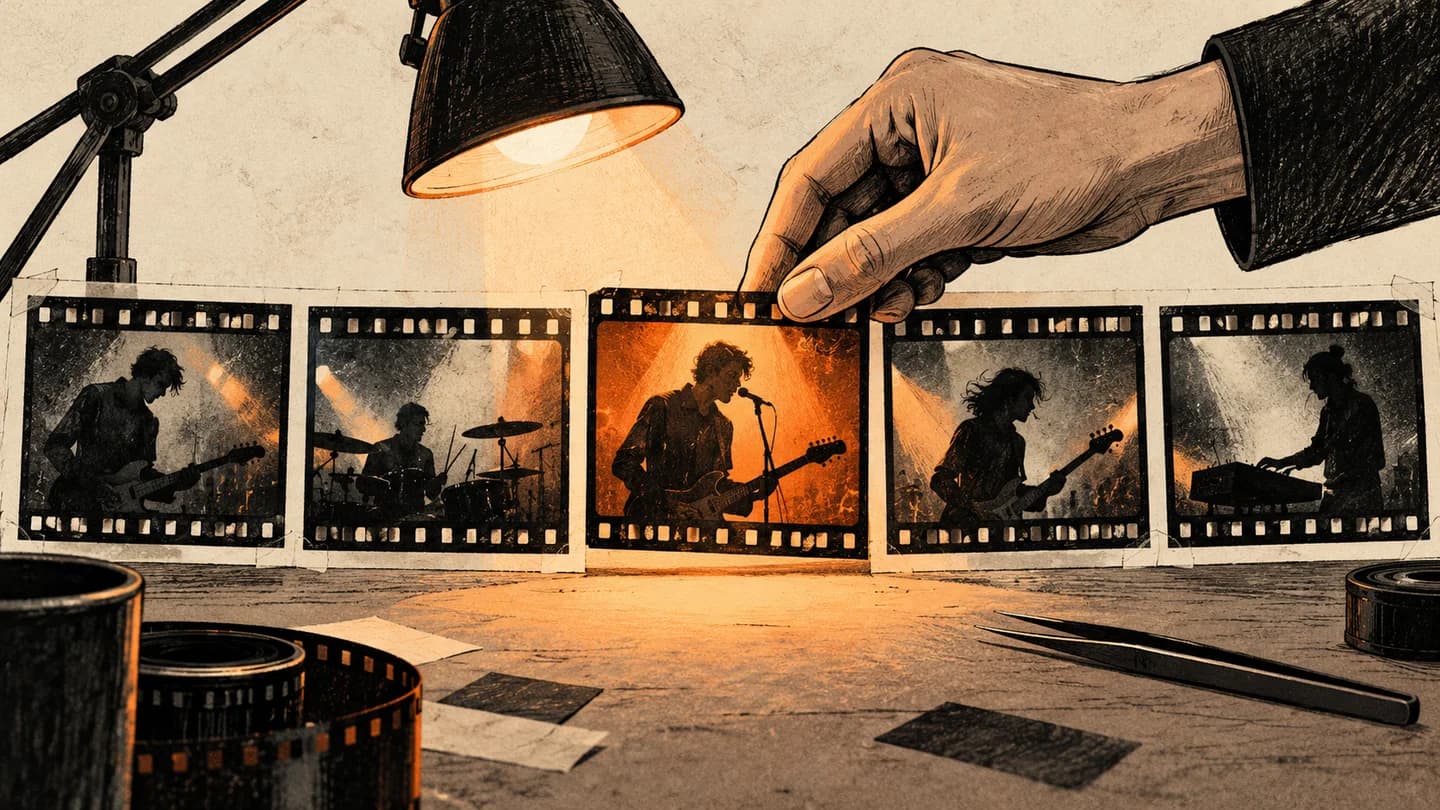
Below is a 12-shot breakdown of an existing 78.59-second VibeMV video excerpt, plus a filled example and a blank CSV you can use for your own song. These notes analyze completed work; they are not presented as its original production storyboard. The cover is an editorial illustration. The numbered panels are actual frames from the finished video.
Download the blank storyboard CSV · Download the filled 12-shot example
Watch the sequence before reading the individual shots
Watch with sound first. Notice how the edit moves between microphone performance, a car, open grassland and roadside scenes before adding a campfire and an outdoor performance. Returning to familiar settings gives the sequence connections without keeping every shot in one location.
This is the same existing sample used in the complete AI music video tutorial; here it is broken down shot by shot. It is an excerpt from a longer track, not an entire song. The clock below starts at the beginning of the video. Shot boundaries come from retained project records and are rounded to hundredths of a second for reading. The labels describe visible scenes; they do not assign unverified verse or chorus names.
The 12-shot storyboard, with real frames
Read left to right, then continue to the next row. Each panel is taken from inside its corresponding shot in the finished video, rather than from an unused reference image.
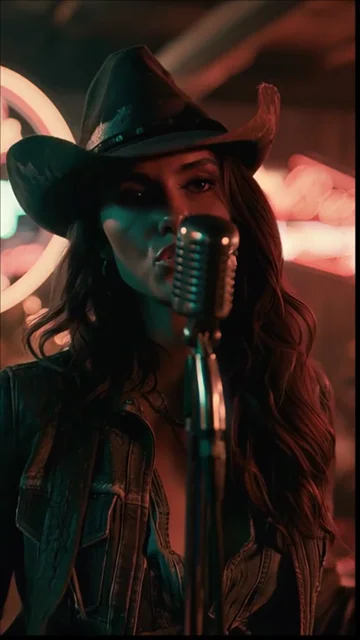
At the microphone
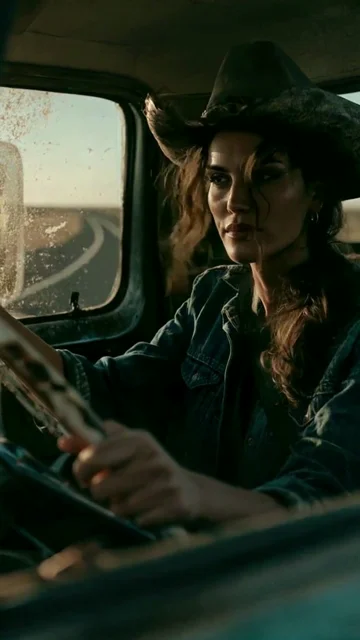
Behind the wheel
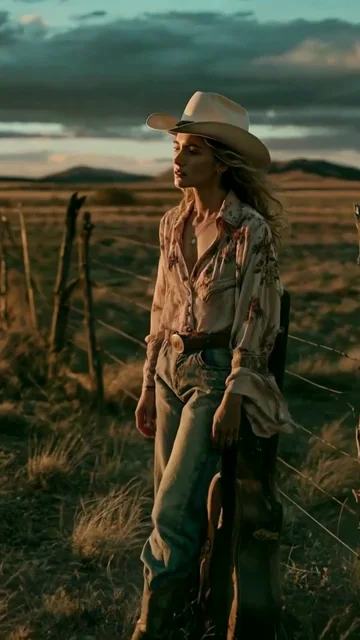
Fence and grassland
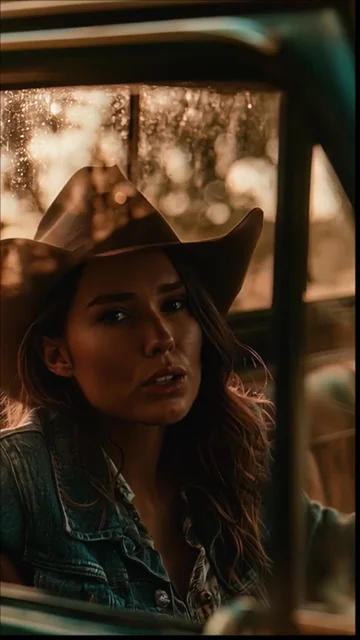
Through the car window
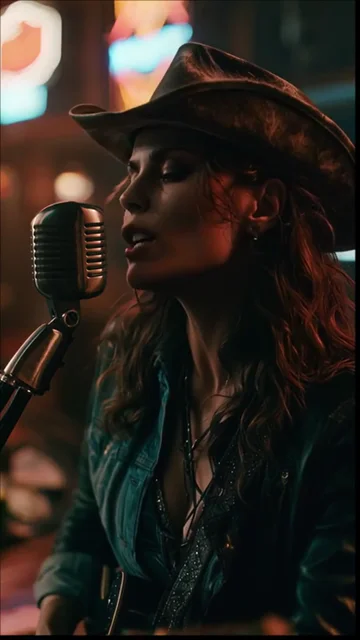
Side view at the microphone
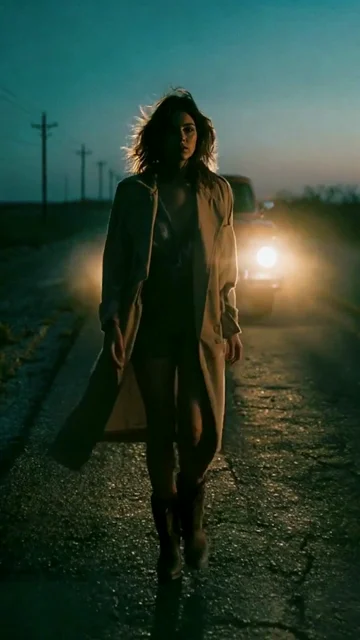
Road and headlights
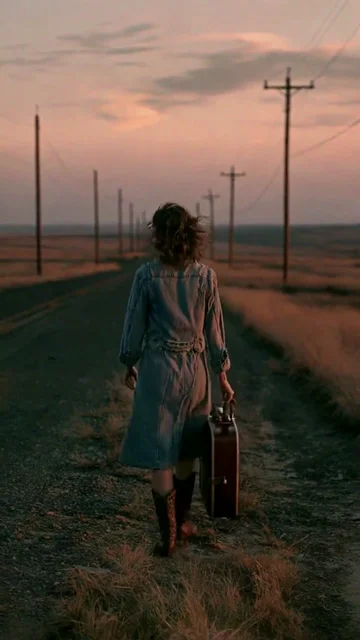
Roadside with a case
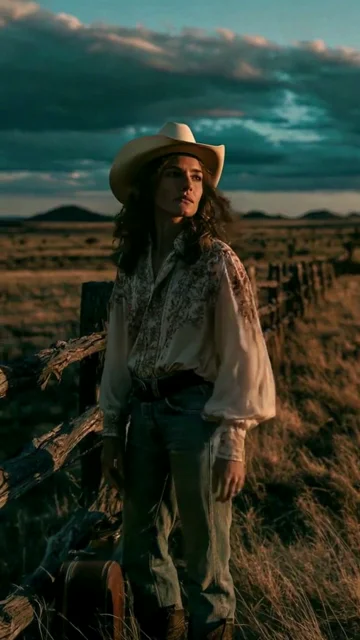
Beside the fence
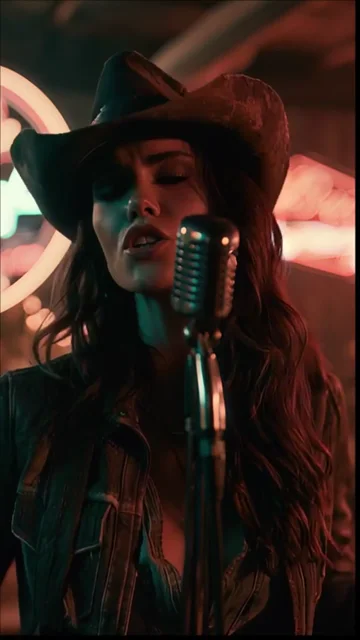
Return to the microphone
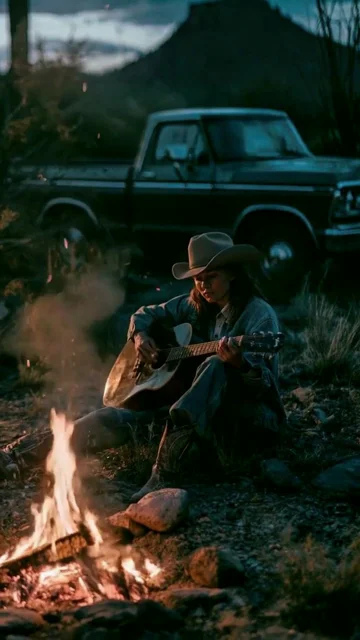
Guitar and campfire
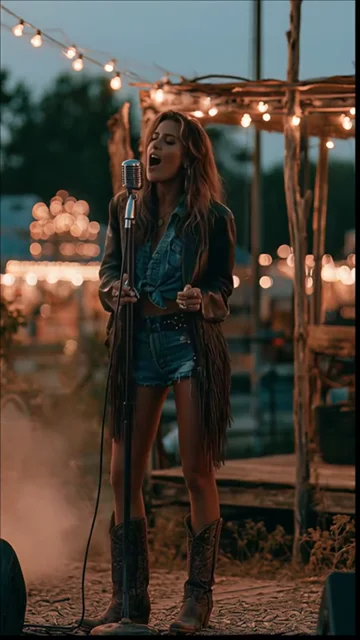
Outdoor performance
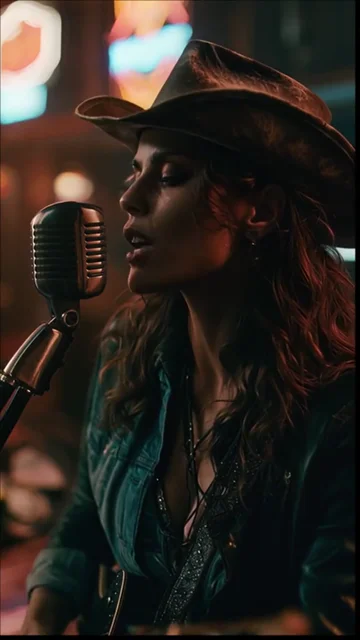
Return to the side close-up
The table gives each visible scene a possible planning role. These are editorial observations you can adapt, not claims about the creator's original intentions.
| Shot | Video time | Visible scene | A useful storyboard job |
|---|---|---|---|
| 01 | 00:00.00–00:04.92 | At the microphone | Introduce the performer and a recurring performance setting. |
| 02 | 00:04.92–00:12.28 | Behind the wheel | Open a second setting while keeping the person central. |
| 03 | 00:12.28–00:19.16 | Fence and grassland | Widen the visual world with a full-body outdoor view. |
| 04 | 00:19.16–00:26.52 | Through the car window | Return to a closer portrait within the car setting. |
| 05 | 00:26.52–00:33.90 | Side view at the microphone | Reconnect with the microphone performance from a different view. |
| 06 | 00:33.90–00:41.66 | Road and headlights | Change the light and setting to give the travel sequence another texture. |
| 07 | 00:41.66–00:44.86 | Roadside with a case | Use a short rear view to vary distance and direction. |
| 08 | 00:44.86–00:49.95 | Beside the fence | Return to the fence setting with a closer composition. |
| 09 | 00:49.95–00:57.31 | Return to the microphone | Bring back a familiar performance image after the travel sequence. |
| 10 | 00:57.31–01:05.13 | Guitar and campfire | Introduce firelight, an instrument and a seated composition. |
| 11 | 01:05.13–01:12.49 | Outdoor performance | Expand the performance to an outdoor setting. |
| 12 | 01:12.49–01:18.59 | Return to the side close-up | Close this excerpt by returning to the familiar microphone view. |
Three observations from this sequence
Give performance and story scenes different jobs
Shot 1 introduces a performer at a microphone. Shot 2 moves into the car. That change creates a second visual thread while keeping a person at the center of the image. A storyboard can make this distinction before you write detailed prompts: one shot carries the performance; another gives the viewer a place, an action or a story detail.
For your own song, write the purpose of each shot in plain language. “Introduce the singer” and “show the journey” are more useful planning notes than repeating “cinematic” in every row. Choose the generation workflow after you know whether the shot needs a visible vocal performance or non-vocal imagery.
Return to an image instead of inventing a new location for every cut
The microphone setting appears in shots 1, 5, 9 and 12. The car appears in shots 2 and 4; the fence setting returns in shots 3 and 8. These recurring places let the sequence change while retaining recognizable visual anchors.
That does not require identical framing or wardrobe throughout. The pale hat and outdoor outfit differ from the darker performance look. If your plan includes such a change, put it in the continuity notes so it is a deliberate choice rather than an unexplained instruction conflict.
Vary distance and duration for a reason
The 3.20-second roadside rear view in shot 7 sits between longer shots. It offers a different view of the travel setting before the edit returns to the fence. The wider campfire composition in shot 10 then adds another arrangement of person, instrument and environment.
Use a short shot when it can communicate its idea quickly. Allow more time when the viewer needs to read an action or a performance. The durations in this example are observations, not a universal timing recipe or a requirement to generate a fixed number of seconds per shot.
Build a storyboard for your own song
- Write one sentence for the visual idea. Name the performer or subject, the world and the feeling you want to sustain. If you need help with the concept document, use the music video treatment guide.
- Mark the part of the song you are planning. Listen and note actual changes in the music. Do not copy this example's time ranges or assume they match your verse and chorus.
- Assign a job to each shot. Decide what introduces the performer, establishes a place, develops an action or returns to a recurring image.
- Choose framing and movement. Describe the subject action and camera direction separately. One clear action is easier to judge than several competing requests in a short shot.
- Mark the connections. Note which person, outfit, location, light or prop should return, and where a planned change occurs.
- Review the whole sequence with the song. Read each row in order. Check whether the next shot adds something and whether a return to a familiar image helps the edit.
The filled CSV summarizes this excerpt's time ranges, visible scenes, possible shot roles and continuity observations. The blank CSV adds framing, subject action, camera movement and reference fields for planning your own shots. Fill only the decisions that matter for the shot. You can add or remove rows; twelve is the example's count, not a quota for your project.
Turn one storyboard row into a shot prompt
A storyboard row decides what the shot contributes to the sequence. The prompt describes the image and movement you want from that shot. For example, a new planning row might be:
| Time | Job | Visual direction | Connection |
|---|---|---|---|
| Your chosen short passage | Introduce a journey | Medium view from the passenger side; one performer at the wheel; restrained camera movement | Retain the planned character and car across the next related shot |
This is a written planning example, not the original prompt behind shot 2. Use the AI music video prompt guide for prompt structure and the character planning guide for cross-shot reference choices.
In the current VibeMV workflow, put the overall direction in the Creative brief, review the Creative plan, then apply it to the Workspace. Check the shot layout and Start frames before generating video. Creating or applying a Creative plan is free; image and video generation use their applicable credits. The CSV here is a downloadable planning resource, not a claim that the Workspace imports this file.
Frequently asked questions
What should an AI music video storyboard include?
Give each shot a time range, visual job, framing, subject action, camera direction and continuity notes. Include a reference frame when available, then review the sequence with the song.
How many shots does an AI music video need?
There is no fixed number. This 78.59-second excerpt contains 12 shots, but your song, pacing and visual idea should determine the shot count. Do not turn every beat into a cut by default.
Is this the original storyboard used to generate the example?
No. It is an annotated breakdown of a completed VibeMV example, using retained shot timings and actual frames. The notes explain how to read and adapt the sequence; they are not a reconstructed original production brief.
For concept versus shot planning, read treatment vs storyboard. For the upload-to-export process, use the complete AI music video tutorial, or start from your song.
More Posts
AI music video prompts: shot examples and templates
Write AI music video prompts for the intro, verse, chorus and bridge. Use a compact shot structure, camera directions and clearly labeled planning examples.
Consistent characters in AI music videos with VibeMV
Set your Main character in AI Producer, review its references in the Creative plan, then check and fix individual Shots in the Workspace.
DistroVid Spotify Music Video Guide (2026)
Review DistroVid pricing, Spotify eligibility, file requirements, delivery steps, timing, rights, and the cases where another route is better.