How to Create Music Videos from Audio Files with AI [2026]
Learn how to turn audio files (MP3, WAV, AAC) into professional music videos using AI. Step-by-step tutorial with audio analysis and automatic lip-sync.

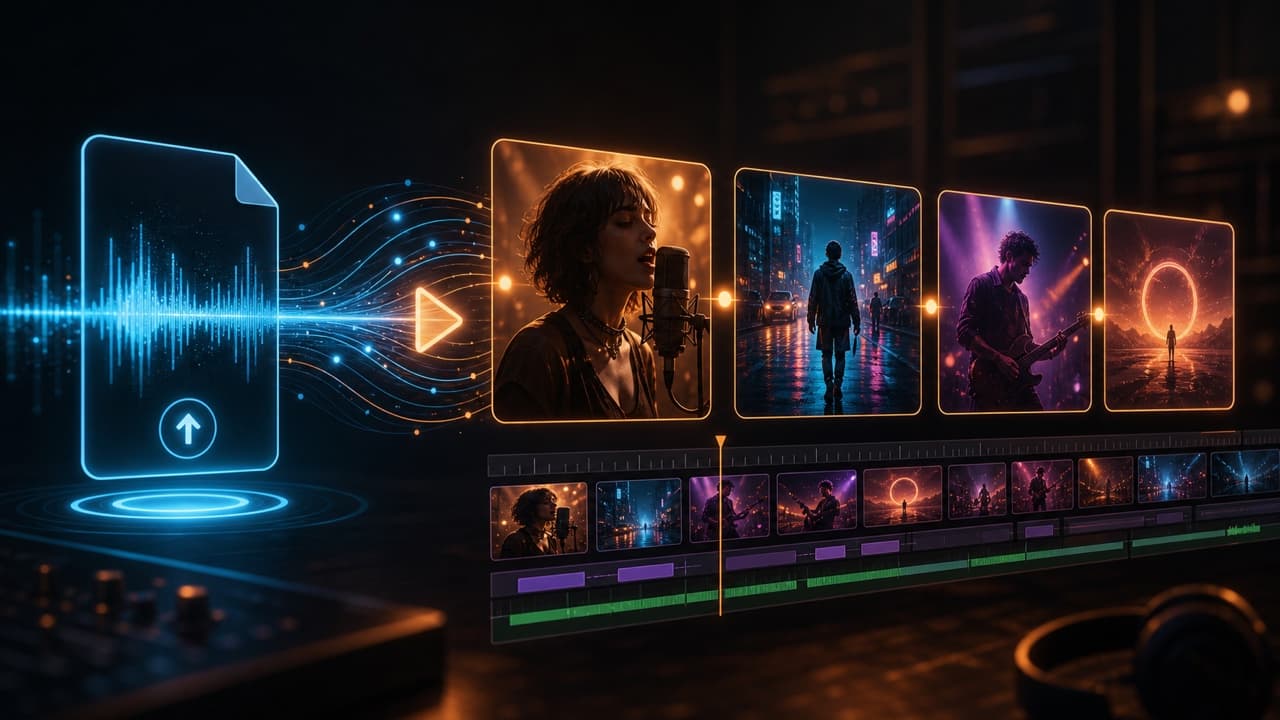
![How to Create Music Videos from Audio Files with AI [2026] How to Create Music Videos from Audio Files with AI [2026]](/_next/image?url=%2Fimages%2Fblog%2Fai-music-video-from-audio-file.png&w=3840&q=75)
As of 2026, AI music video generators convert raw audio files (MP3, WAV, AAC, M4A) into fully synchronized music videos in 5-15 minutes. Platforms like VibeMV support tracks up to 5 minutes and 100 MB, outputting at 720p (with optional 1440p upscale) in both 16:9 and 9:16 formats. The AI automatically performs audio analysis, vocal detection, song structure segmentation, and optional lip-sync generation — eliminating the $5,000-$20,000 cost and weeks-long timeline of traditional music video production. WAV files produce the best AI analysis results, followed by MP3 at 320kbps.
Two years ago, turning an audio file into a music video meant hiring a director, booking a shoot, and spending weeks in post-production. A basic video ran $5,000 to $20,000. A polished one cost significantly more. Today, AI music video generators accept your raw audio file — MP3, WAV, AAC, whatever you have — and produce a complete, beat-synchronized video in minutes. The technology analyzes your track's structure, detects vocals, and generates visuals that actually respond to the music rather than sitting passively behind it.
This guide covers the entire audio-to-video workflow: how the AI processes your file, which formats work best, and the exact steps to go from a raw audio track to a finished music video. We have tested this process across hundreds of tracks and refined it into a repeatable system.
Key Takeaways
- Any common audio format works — MP3, WAV, AAC, and M4A are all supported, with WAV producing the best AI analysis results
- The AI does the heavy lifting — audio analysis, vocal detection, and song structure segmentation happen automatically after upload
- Lip-sync requires no extra input — the platform detects vocal sections and generates character performances without separate vocal tracks or lyrics
- Full songs up to 5 minutes are supported — with a 100 MB file size limit and segment-by-segment generation
- Two generation modes serve different needs — Normal mode for beat-synced visuals, Lipsync mode for character vocal performances, or a mix of both
- Output is platform-ready — 720p default (1440p with upscale) in both 16:9 and 9:16 aspect ratios for YouTube, TikTok, Spotify Canvas, and more
How AI Generates Music Videos from Audio Files
Understanding what happens behind the scenes — from audio analysis (the AI's examination of your track's waveform, beats, and vocal content) to video synthesis (the generation of visual frames matched to your music) — helps you prepare better audio and make smarter creative decisions. The process follows three distinct stages.
Stage 1: Audio Analysis
When you upload an audio file, the AI analyzes your track's structure, energy, and vocal content to segment it into logical sections. Audio analysis identifies how the energy shifts across sections and where natural transitions occur. Vocal detection identifies exactly which portions of the track contain vocals and which are purely instrumental. Structure segmentation uses this analysis to divide your song into logical sections: intro, verses, choruses, bridges, and outro.
This analysis stage typically completes within a minute for a standard-length track. The quality of this analysis directly determines the quality of your final video. Clean, well-mixed audio with clear vocal separation produces the most accurate segmentation. Muddy mixes or heavily compressed files force the AI to guess, which reduces precision.
Stage 2: Storyboard Generation
Once the audio is analyzed, the AI (or you, manually) assigns visual direction to each segment. This is where the creative layer sits. Each segment gets a style prompt describing the visual content — subject matter, environment, lighting, color palette, and mood.
Music-specific platforms like VibeMV offer an AI Director feature that auto-generates storyboards based on the audio analysis. The Director interprets tempo, energy, and vocal presence to propose visuals that match the music's feel: subdued atmospherics for quiet verses, high-energy visuals for choruses, and transitional imagery for bridges.
Stage 3: Video Synthesis
With the storyboard defined, the AI generates video content for each segment independently. Segments with vocals can receive lip-sync processing if you provide a character image. Instrumental segments get beat-synchronized visuals where transitions, camera movements, and visual intensity align with the rhythmic structure detected in Stage 1.
The key difference between traditional tools and music-specific AI generators is automation depth. General-purpose AI video tools like Runway or Pika generate excellent video, but they treat audio as an afterthought. You generate clips, then manually assemble them in a video editor and sync them to your track. Music-specific tools automate the entire pipeline: the analysis, the segmentation, the per-section generation, and the final assembly into a single video with audio already attached. For a broader look at the options, see our comparison of the best AI music video generators.
Supported Audio Formats (2026)
Not all audio files are created equal when it comes to AI analysis. The format and quality of your input file directly affect audio analysis accuracy, vocal detection quality, and overall video output. Here is a comparison of how each format performs:
| Format | Quality | Typical File Size (3 min) | AI Analysis Quality | Recommendation |
|---|---|---|---|---|
| WAV | Lossless, full detail | 30-50 MB | Excellent | Best choice for AI generation |
| MP3 (320kbps) | High quality lossy | 7-10 MB | Very Good | Best balance of quality and size |
| MP3 (192kbps) | Standard lossy | 4-6 MB | Good | Acceptable but reduced accuracy |
| AAC / M4A | High quality lossy | 5-8 MB | Very Good | Common iOS/Apple export format |
WAV is the best choice for AI analysis. Lossless formats preserve every detail in the audio waveform, giving the audio analysis and vocal detection the cleanest signal to work with. If you have access to your DAW project files or master exports, export as WAV (16-bit or 24-bit, 44.1kHz or 48kHz).
MP3 at 320kbps is the practical default. Most musicians already have MP3 files ready for distribution. At 320kbps, the quality difference from WAV is negligible for AI analysis purposes. Below 192kbps, you start losing detail that affects vocal detection accuracy — quiet backing vocals may be missed, and audio analysis becomes less precise.
AAC and M4A work well. These are common formats from Apple ecosystem exports and streaming rips. Quality is comparable to MP3 at equivalent bitrates.
VibeMV accepts files up to 100 MB with track lengths from 3 seconds to 5 minutes. Most 5-minute WAV files fit comfortably within this limit. If your file exceeds 100 MB, consider converting to high-bitrate MP3 to reduce size without significant quality loss.
Step-by-Step: Generate a Music Video from Your Audio File (6 Steps)
Here is the complete workflow from raw audio file to finished music video in 6 steps. Each step includes the specific actions and decisions you will encounter. If you want a condensed version focused purely on speed, see our 5-minute music video tutorial.
Step 1: Prepare Your Audio File
Before uploading, take two minutes to ensure your audio file will produce the best possible results.
Check your format and bitrate. WAV or MP3 at 320kbps are ideal. If your file is a low-bitrate MP3 (128kbps or below), consider re-exporting from your DAW at a higher quality. Converting a low-bitrate file to WAV does not recover lost detail — the improvement only comes from exporting the original source at higher quality.
Verify the mix quality. AI analysis works best with clean, well-balanced mixes. If your vocals are buried in the instrumental or the overall mix is clipping (hitting 0dB and distorting), the audio analysis and vocal detection will be less accurate. A properly mastered track at -14 LUFS to -10 LUFS produces the best results.
Trim unnecessary silence. If your audio file has long stretches of silence at the beginning or end, trim them before uploading. The AI will attempt to generate visuals for silence, which wastes credits and produces blank or filler content.
Confirm file size and length. VibeMV supports files up to 100 MB and track lengths from 3 seconds to 5 minutes. If your track exceeds 5 minutes, identify the strongest section (typically 2-4 minutes covering a verse, chorus, and bridge) and export that portion. You can always generate additional sections later.
Step 2: Upload to VibeMV
Open your project dashboard and drag your audio file into the upload zone. The platform accepts drag-and-drop from your file manager or a standard file picker dialog. Upload begins immediately and the audio analysis pipeline starts processing as the file transfers.
Within about a minute of upload completing, you will see the analysis results: a waveform visualization of your track with auto-detected segment boundaries marked along the timeline. Vocal regions are highlighted distinctly so you can see exactly where the AI detected singing or rapping. This analysis drives every subsequent step.
Step 3: Review AI-Generated Segments
The auto-segmentation divides your track into logical sections based on beat structure, vocal presence, and energy changes. A typical 3-minute pop track splits into approximately 18-30 segments covering intro, verse, pre-chorus, chorus, bridge, and outro sections.
Review the segment boundaries. In most cases, the AI gets these right — splits land on natural transition points in the music. If a split falls mid-phrase or mid-word, drag the segment boundary to reposition it. This is the most common manual adjustment and takes just a few seconds per correction.
Check vocal detection. Segments where vocals were detected will be flagged differently from instrumental segments. Verify that the AI correctly identified which sections contain vocals, especially if your track has quiet background vocals, harmonies, or spoken-word sections that might be ambiguous. This detection determines which segments are eligible for lip-sync generation.
Step 4: Customize Visual Direction
Each segment needs a visual style direction. You have two approaches.
Use the AI Director. Click the AI Director button and the system analyzes your audio's mood, tempo, and structure to generate a complete storyboard with per-segment style prompts. For most first-time users, this is the fastest path to a good result. The Director typically proposes varied styles — moody and atmospheric for verses, high-energy and visually dynamic for choruses, transitional imagery for bridges.
Write custom prompts. For each segment (or globally for the entire video), type a description of the visuals you want. Be specific: "lone figure walking through rain-soaked Tokyo streets at night, neon reflections on wet pavement, cool blue and magenta tones, cinematic wide angle" will produce dramatically better results than "cool city scene." Focus on subject, environment, lighting, color, and mood.
Select a character image (optional, for lip-sync). If you want vocal sections to feature a singing character, upload a reference image. This can be a photo, illustration, or any face the AI can animate. Front-facing characters with clearly visible mouths produce the best lip-sync results. For a deep dive on getting the best lip-sync output, read our AI lip sync music videos guide.
Step 5: Choose Generation Mode
This is the most important creative decision in the workflow.
Normal mode generates beat-synchronized visuals — environments, abstract imagery, cinematic scenes — that respond to your music's rhythm and energy. Visual transitions align with detected beats. Intensity shifts match the audio's dynamics. This mode works for any audio file and does not require a character image.
Lipsync mode generates character performances where mouth movements match your vocals. You provide an audio file and a character image, and the AI produces a video of that character appearing to sing your track. This is particularly effective for vocal-driven genres like pop, R&B, hip-hop, and singer-songwriter material.
Mixed mode is the most effective approach for tracks that combine vocals and instrumentals. Set Lipsync mode for your vocal segments (verses, choruses) and Normal mode for instrumental sections (intros, outros, bridges, solos). This creates natural visual variety — the audience sees a performer during vocal moments and stylized visuals during instrumental passages. For a detailed comparison of these approaches, see our lip-sync vs beat-sync guide.
Step 6: Generate and Export
Click generate. The platform processes each segment independently, often in parallel. Generation times depend on segment count and server load:
- 30-second clip: 1-3 minutes
- Full 3-minute track: 5-15 minutes
- With upscale to 1440p: Add 2-5 minutes
As segments complete, you can preview them individually. Once all segments finish, preview the full video with synchronized audio playback. Check transitions between segments, lip-sync accuracy on vocal sections, and overall visual coherence.
Choose your aspect ratio before generating. This cannot be changed without regenerating:
- 16:9 (1280x720) for YouTube and standard video platforms
- 9:16 (720x1280) for TikTok, Instagram Reels, and YouTube Shorts
If you need both orientations, generate the 16:9 version first, review it, then regenerate in 9:16. Your segmentation and style prompts carry over, so the second pass only costs rendering time and credits.
Download your finished video as MP4 (H.264) at 720p, or enable upscale for 1440p output. The file is ready for direct upload to any platform — no post-processing required.
Best Audio-to-Video AI Tools Compared (2026)
Several AI platforms can generate video from audio, but they differ significantly in how deeply they analyze and respond to the audio input. Here is how the leading tools compare specifically for audio-file-to-video workflows.
| Tool | Audio Analysis | Auto-Segmentation | Lip-Sync | Full Song Support | Starting Price |
|---|---|---|---|---|---|
| VibeMV | Smart audio segmentation, vocal detection, structure analysis | Yes, automatic | Yes, automatic | Up to 5 min | Free tier / $19/mo |
| Runway | None (manual sync) | No | Yes (post-production, speech-optimized) | Manual only | $12/mo |
| Pika | None (manual sync) | No | Yes (per-clip) | Manual only | Free tier / $8/mo |
| Kaiber | Basic audio analysis | Partial | Yes (basic, image + video) | Up to 4 min | from $5/mo (Explorer) or $10/mo (Pro, annual) |
| Sora | None (manual sync) | No | No | Manual only | $20/mo (via ChatGPT Plus) |
Competitor pricing is approximate and may have changed. Visit each tool's website for current rates.
VibeMV is purpose-built for the audio-to-video workflow. It is one of the few platforms that combines automatic audio analysis, vocal detection, song structure segmentation, and lip-sync generation in a single pipeline. You upload an audio file and get a complete music video. No manual clip assembly, no timeline editing, no audio alignment in post-production.
Runway produces the highest raw video quality in the market but treats audio as a separate concern. You generate individual clips using text or image prompts, then import those clips into a video editor alongside your audio track and manually sync them. The results can be excellent but the workflow is significantly slower and requires editing skills.
Pika offers accessible video generation with a generous free tier but has no built-in audio analysis. Like Runway, you generate clips individually and handle synchronization manually. Lip-sync support is limited to basic talking-head functionality, not music-specific vocal matching.
Kaiber was one of the first tools to offer audio-reactive video generation. It performs basic audio analysis and can produce visuals that pulse with your music. However, it lacks vocal detection and automatic song structure segmentation, and offers basic lip-sync (not music-optimized). The visual style leans toward abstract and dream-like, which works well for electronic and ambient music but less so for vocal-driven genres.
Sora by OpenAI generates photorealistic video that surpasses other tools in raw visual fidelity. However, it has no music-specific features — no audio analysis, no segmentation, no lip-sync. Using Sora for music videos requires generating clips independently and assembling them manually.
For a more detailed breakdown of each platform including pricing tiers, output quality samples, and genre-specific recommendations, see our full comparison of the best AI music video generators. If you are looking for a complete walkthrough on combining your audio track with AI visuals, see our guide to adding audio and video with AI.
Tips for Better Results
The difference between a mediocre AI music video and a professional-looking one usually comes down to preparation and creative direction, not the tool itself. Here are the practices that consistently produce better output.
Prioritize Audio Quality
This is the single most impactful factor. The AI's ability to analyze your audio, detect vocals, and identify song structure depends entirely on the audio signal it receives. A well-mixed, properly mastered track at WAV or 320kbps MP3 will produce dramatically better segmentation than a low-bitrate rip.
If your track has not been professionally mixed, at minimum ensure:
- Vocals sit above the instrumental mix (not buried)
- The overall level is not clipping or distorting
- There is some dynamic range (not hyper-compressed)
- Background noise is minimal during vocal sections
Choose the Right Format for Your Situation
Use WAV when you have access to the original master or DAW export and file size is not a concern. Use MP3 at 320kbps when you need a smaller file or are working with a pre-distributed track. Avoid using files below 192kbps — the quality tradeoff is not worth the marginal file size savings.
If your only available file is a low-bitrate MP3, it will still work. The video will generate successfully. But audio analysis and vocal detection will be less precise, which may result in slightly off-tempo transitions or missed vocal sections. For tracks where precision matters — especially for lip-sync content — invest the time to source or export a higher-quality file.
Be Specific with Style Prompts
Vague prompts produce generic results. The AI generates better content when you provide concrete visual descriptions. Compare these two approaches:
Weak prompt: "dark aesthetic, moody vibes"
Strong prompt: "figure standing alone in an empty subway station at 2am, fluorescent lights flickering, concrete walls with water stains, cold blue-green color palette, shallow depth of field, film grain texture"
The strong prompt gives the AI specific subjects, environments, lighting conditions, colors, and photographic qualities to work with. Each detail constrains the output toward your vision rather than the AI's default interpretation of "moody."
For segment-specific variety, consider mapping visual intensity to musical intensity. Verses often work well with more subdued, intimate visuals. Choruses benefit from wider shots, brighter colors, or more dynamic movement. Bridges can introduce a visual element that has not appeared before, creating the same sense of departure that the musical bridge provides.
Optimize for Your Target Platform Before Generating
Decide where you will publish before you start generating. Aspect ratio (16:9 vs 9:16) is locked at generation time and changing it requires a full regeneration. If you are primarily targeting TikTok and Instagram Reels, generate in 9:16 from the start rather than cropping a 16:9 video after the fact — cropping loses significant visual information and the composition will not be optimized for the vertical frame.
For artists publishing across multiple platforms simultaneously, the most efficient approach is to generate your primary format first (usually 16:9 for a YouTube release), review and iterate until satisfied, then regenerate in 9:16 using the same segmentation and style prompts. This ensures visual consistency across formats. If you are an independent artist managing multiple platform releases, our guide on AI music videos for independent artists covers multi-platform strategy in depth.
Limitations and Honest Trade-Offs
AI audio-to-video generation has matured significantly, but understanding current limitations helps you set realistic expectations:
- Visual fidelity from AI generators sits below professionally filmed footage — AI-generated videos are excellent for social media, releases, and promotional content, but may not match the quality of a $10,000+ traditional production for flagship releases
- Unusual time signatures (5/4, 7/8) and frequent tempo changes can confuse audio analysis, requiring more manual segment adjustment
- Dense or sparse arrangements challenge the AI in different ways — a solo piano ballad may lack energy variation for dynamic visuals, while a wall-of-sound production can obscure section transitions
- Lip-sync with heavily processed vocals (extreme auto-tune, vocoder, distortion) may fail to activate, since the AI may not recognize the audio as vocal content
These limitations narrow with each platform update, and for the vast majority of independent artist use cases, AI-generated music videos deliver professional-quality results at a fraction of traditional costs.
Common Issues and Troubleshooting
Even with good preparation, you may encounter issues during the audio-to-video workflow. Here are the most common problems and their solutions.
Audio Not Recognized or Upload Fails
Unsupported format: Ensure your file is MP3, WAV, AAC, or M4A. Formats like FLAC, OGG, WMA or proprietary DAW project files are not supported. Convert to WAV or MP3 using a free tool like Audacity or an online converter.
File too large: VibeMV's limit is 100 MB. Long WAV files at high sample rates can exceed this. Export as MP3 at 320kbps to reduce file size while maintaining high quality for AI analysis.
File too short or too long: Track length must be between 3 seconds and 5 minutes. For tracks exceeding 5 minutes, export the strongest section as a separate file.
Corrupted file: If your file plays correctly in a media player but fails to upload, try re-exporting from your DAW or converting to a different format. Occasionally, metadata issues in the file header cause upload parsers to reject otherwise valid audio.
Poor Audio Segmentation
Cause: Noisy or poorly mixed audio. Heavy distortion, excessive reverb, or a muddy low end can obscure the audio details that the segmentation algorithm relies on. Solution: use a cleaner mix or export with less master bus processing.
Cause: Unusual time signatures or tempo changes. Standard 4/4 tracks at consistent tempos produce the most accurate segmentation. Tracks with frequent tempo changes, odd meters (5/4, 7/8), or rubato passages may result in segment boundaries that do not align with musical phrases. Solution: manually adjust segment boundaries after auto-detection.
Cause: Very sparse or very dense arrangements. A solo piano ballad and a wall-of-sound production both challenge audio analysis in different ways. Sparse arrangements may lack enough energy variation, while dense arrangements can make it harder to identify natural section transitions. In both cases, manual boundary adjustment is the most reliable fix.
Lip-Sync Not Activating
Cause: Vocals too quiet in the mix. If vocals are buried beneath the instrumental, the AI may classify the entire segment as instrumental and skip lip-sync processing. Solution: if possible, provide a version of the mix with slightly louder vocals, or use a vocal-up mix for generation.
Cause: Heavy vocal effects. Extreme auto-tune, vocoder processing, or heavy distortion on vocals can interfere with the vocal detection algorithm. The AI may not recognize processed audio as vocal content. Solution: try a less processed version of the track for generation, or manually flag vocal segments.
Cause: No character image provided. Lip-sync mode requires a character reference image. Without one, the platform defaults to Normal mode even if vocals are detected. Upload a front-facing character image with a clearly visible mouth for best results.
Visual Quality Lower Than Expected
Cause: Default resolution setting. Output defaults to 720p. For higher detail, enable the 1440p upscale option before generating. This adds processing time but significantly improves visual clarity.
Cause: Overly complex prompts. Prompts that request too many conflicting elements ("a cat riding a motorcycle through a rainbow while playing guitar in a snowstorm") force the AI to compromise on everything. Simpler, more focused prompts produce cleaner output. Aim for 3-5 coherent descriptive elements per prompt.
Cause: Low-quality source audio. Audio quality affects more than just segmentation — it influences the overall generation pipeline. Higher-quality audio files produce subtly better visual output because the AI's style interpretation is partially informed by audio characteristics.
Frequently Asked Questions
Q: Can I make a music video from just an MP3 file?
A: Yes. AI music video generators like VibeMV accept MP3 files and automatically analyze the audio to generate synchronized visuals. Upload your MP3, and the platform handles audio analysis, vocal detection, and video generation without any additional input required. Results at 320kbps are nearly indistinguishable from lossless formats. For lower bitrates, the video will still generate but audio analysis precision may be reduced.
Q: What audio file format works best for AI music video generation?
A: WAV files produce the best results because they preserve full audio detail for AI analysis. MP3 at 320kbps is a close second and is the practical choice for most users since the quality difference is minimal. AAC and M4A also work well, particularly if you are exporting from Apple ecosystem tools. Avoid files below 192kbps as they reduce the accuracy of audio analysis and vocal detection.
Q: How long can my audio file be for AI video generation?
A: VibeMV supports audio files from 3 seconds up to 5 minutes in length, with a maximum file size of 100 MB. For tracks longer than 5 minutes, identify the strongest 2-4 minute section and generate a video for that portion. Short clips (30 seconds to 1 minute) are also supported and work well for social media previews and Spotify Canvas loops.
Q: Does the AI analyze my audio to create the video?
A: Yes. This is what separates music-specific AI video generators from general-purpose tools. Platforms like VibeMV perform automatic audio analysis including smart audio segmentation (identifying song structure and energy patterns), vocal detection (identifying which sections contain vocals), and song structure identification (dividing the track into intro, verse, chorus, bridge, and outro sections). The AI uses this analysis to determine where visual transitions occur, which sections receive lip-sync treatment, and how to pace the visual narrative.
Q: Can I generate a music video with lip sync from an audio file?
A: Yes. VibeMV automatically detects vocal sections in your audio file and generates lip-synced character animations for those segments. You upload your complete audio file along with a character reference image, and the platform handles vocal detection, vocal analysis, and mouth movement generation. Instrumental sections receive standard beat-synchronized visuals. No separate vocal track or lyrics input is needed. Read our complete AI lip sync music videos guide for detailed techniques.
Q: Do I need to separate vocals from my audio file first?
A: No. VibeMV performs automatic vocal detection and separation internally. You upload your complete mixed audio file — vocals, instruments, and all — and the platform analyzes which segments contain vocals and should receive lip-sync treatment. No manual vocal separation step is needed.
Q: What resolution are AI music videos generated from audio files?
A: VibeMV generates videos at 720p by default with an optional upscale to 1440p (approximately 2x the pixel count). Most AI video generators output at 720p-1080p resolution, which meets quality standards for YouTube, Spotify Canvas, TikTok, Instagram, and all other major platforms. For flagship YouTube releases, enable the 1440p upscale. For social media clips, the 720p default is more than sufficient.
Q: Can I use AI-generated music videos on YouTube and Spotify?
A: Yes. As of 2026, AI-generated music videos are accepted on YouTube, Spotify (via Canvas for short loops), TikTok, Instagram, and all major platforms. None of these platforms penalize or restrict AI-generated visual content. For YouTube, upload the 16:9 MP4 directly. For Spotify Canvas, generate a 3-8 second looping clip. For TikTok and Instagram Reels, use the 9:16 vertical format. See our guide on how to make a music video with AI for distribution strategy.
Conclusion
The workflow from audio file to finished music video has been reduced from weeks of production to minutes of generation. Upload your MP3 or WAV, let the AI analyze the beat structure and vocal content, set a visual direction, choose your generation mode, and download a complete video. The technology handles the technically demanding parts — audio analysis, vocal detection, segmentation, lip-sync animation, and video synthesis — while you retain creative control over the visual direction.
This is not a simplified preview or demo workflow. It is the actual production process that independent artists use to release music videos alongside every single, every feature, every loosie. The cost is a fraction of traditional video production, and the turnaround is measured in minutes instead of months.
If you have not tried generating a video from your audio file yet, start with a single track. Upload the best-quality file you have, let the AI Director generate a storyboard, and see what comes back. The first result will show you exactly what the technology is capable of with your specific music. From there, you can iterate on style, experiment with lip-sync on vocal sections, and develop a visual identity for your releases. Check out our guide on turning your song into a video for additional creative approaches.
Ready to turn your audio file into a music video? Try VibeMV free — upload your track and generate a professional video in minutes.
More Posts
![Audio to Video AI: Complete Guide to Converting Sound into Visuals [2026] Audio to Video AI: Complete Guide to Converting Sound into Visuals [2026]](/_next/image?url=%2Fimages%2Fblog%2Faudio-to-video-ai-guide.png&w=3840&q=75)
Audio to Video AI: Complete Guide to Converting Sound into Visuals [2026]
Turn any audio file into video with AI. Covers music videos, podcast clips, visualizers, and audio-video sync — with tool comparisons, workflows, and pricing for each use case.


How to Make a Music Video in 2026: Complete Beginner's Guide
Learn how to make a music video — with AI, on your phone, or on a budget. Step-by-step methods for YouTube, TikTok, and Instagram, from $0 to professional quality.


VibeMV Base vs Pro: Which Model Tier Should You Choose?
Not sure if VibeMV Pro is worth 6x the credits? This guide breaks down exactly when Base is enough and when Pro makes a visible difference — with real cost examples.