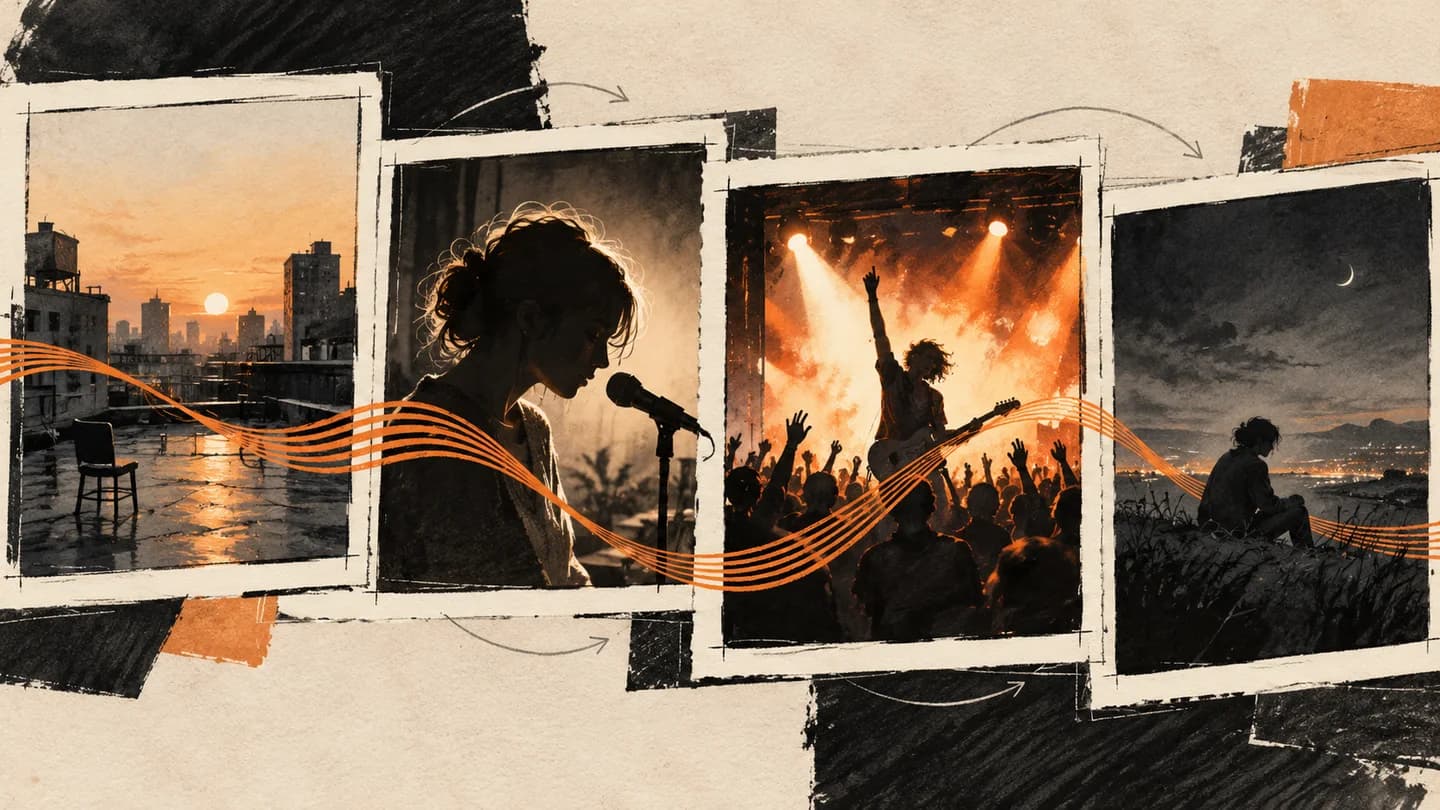
Start an AI music video prompt with the job of one shot. Describe the subject, setting, main action, framing and camera direction, then name the elements that should continue from neighboring shots.
The examples below are written planning templates. For an actual sequence with finished-video frames and time ranges, see the 12-shot storyboard example. Its panels are output evidence; these templates are a resource for writing your own direction. The cover is an editorial illustration.
A compact prompt structure
Start with a sentence for each decision you need:
| Decision | Example |
|---|---|
| Subject and setting | One performer in a dark jacket beside a rehearsal-room window |
| Main action | A short side step and shoulder accent |
| Framing | Full body, with space around hands and feet |
| Camera | Slow lateral movement |
| Continuity | Keep the reference outfit, location and lighting |
| Ending | Continue moving into the cut |
Do not force all six into every prompt. A locked camera or a still performer may be exactly right. Asking for several locations, costume changes and complex actions in one short shot gives you more possible failure points.
Intro, verse, chorus and bridge: planning templates
Use these four written examples to give different song sections different visual jobs. They share one imagined world; they have not been tested together as a generated music video.
Each template combines appearance and movement directions. Split those parts between the fields described below rather than pasting a whole template into one box. Phrases such as "from the Character reference" are ordinary wording, not syntax that selects an image; set the Main character and check the Shot's selected references through the controls.
Intro: establish a place
An empty rooftop at dusk, one warm rehearsal-room window in the distance. Wide static frame with a slow change in cloud light. Restrained amber and slate palette. No performer yet. Keep the scene simple enough for a short opening shot.Listen for what the intro does before choosing a reveal. If the song begins immediately with a vocal, an empty establishing shot may be the wrong choice.
Verse: make the performance readable
The same performer from the Character reference, in the same dark jacket, standing beside the rehearsal-room window. Medium framing, one restrained hand gesture, slow lateral camera movement. Keep the face clear and the lighting consistent with the opening.For a singing close-up, choose the appropriate Lipsync workflow and a suitable vocal section. A Scene prompt mentioning singing does not itself establish vocal synchronization.
Chorus: increase energy without changing the world
The same performer and outfit on the rooftop, full-body framing with room around the hands and feet. A confident step forward and one strong arm accent. Controlled low-angle push-in. Stronger warm backlight within the established amber and slate palette. Continue the action into the cut.If you need choreography, evaluate Dance for that shot and its actual input requirements. A more energetic camera does not make a generated action a reliable dance routine.
Bridge: create contrast
Return to the rehearsal-room window after the chorus. A quiet detail of the performer's hand resting on the window frame, dark sleeve visible. Locked close framing, soft side light, minimal movement. Preserve the location and color palette; do not introduce another character.An insert can create a pause and reduce how often a difficult face must be regenerated. It is an editing option, not a fix for a broken character reference.
Use the templates in the current Workspace
- In AI Producer → Main character, upload a character image and/or fill in Character notes for the lead's appearance.
- Open Preferences → Story direction for the overall intent and scene progression. Creative brief names this collection of inputs; it is not a separate text box.
- Review each Shot's Image prompt in the Creative plan for the subject, outfit, setting and still-frame composition. After applying the plan, edit the image prompt in the Workspace's Image step. Use Reference Images to guide the starting still, then click Generate image when you need a new Start frame.
- Put action and camera movement in that Shot's optional Video prompt. This is separate from the description of its starting image.
For the verse template, the still-frame description could be "The selected performer in a dark jacket beside the rehearsal-room window, medium framing, face clear." The Video prompt could be "One restrained hand gesture, slow lateral camera movement." These remain untested writing examples; the text does not attach a reference image.
Check the shot layout against your song and inspect each Start frame before generating motion. A prompt for one accent should not cover an entire long verse by accident. Generate a small representative section, then watch it with the song before extending the approach.
Creating or applying a Creative plan is free. Media generation and regeneration use credits. The main product analyzes beats, energy, vocal sections and song structure; it does not transcribe or interpret lyrics for you. Add essential story meaning to Story direction yourself.
Review the result, not just the prompt
Watch the beginning, middle and end. Check whether the face changes during a turn, whether hands leave frame, whether the shot stops too early and whether the next cut is meaningfully different. Keep a short record of the prompt, reference, selected mode, output and your next change.
For shot order, time ranges and connections, use the storyboard example and blank template. For reference choices across shots, use the character planning guide. If you need timed words on screen rather than generated scenes, use the Lyric Video Maker.
Frequently asked questions
What should an AI music video prompt describe?
Describe the subject, one main action, framing, camera movement, setting and continuity constraints. Match the request to the shot duration and inspect the Start frame before generating motion.
Do the intro, verse, chorus and bridge templates have generated results?
These are written planning examples, not a record of generated results or the original prompts behind the linked storyboard sample. Adapt them to your song and inspect your own outputs.
Does VibeMV require a Video prompt?
No. The Workspace Video prompt is optional. You can generate from a Start frame alone; a prompt is useful when you want to communicate a specific action, framing or camera direction.
Start with the AI music video generator when your finished song and visual direction are ready.
More Posts
AI music video storyboard: 12-shot example and template
Plan an AI music video storyboard with 12 timed shots, real finished-video frames and a free CSV template. Learn how performance and story scenes fit together.
Consistent characters in AI music videos with VibeMV
Set your Main character in AI Producer, review its references in the Creative plan, then check and fix individual Shots in the Workspace.
DistroVid Spotify Music Video Guide (2026)
Review DistroVid pricing, Spotify eligibility, file requirements, delivery steps, timing, rights, and the cases where another route is better.