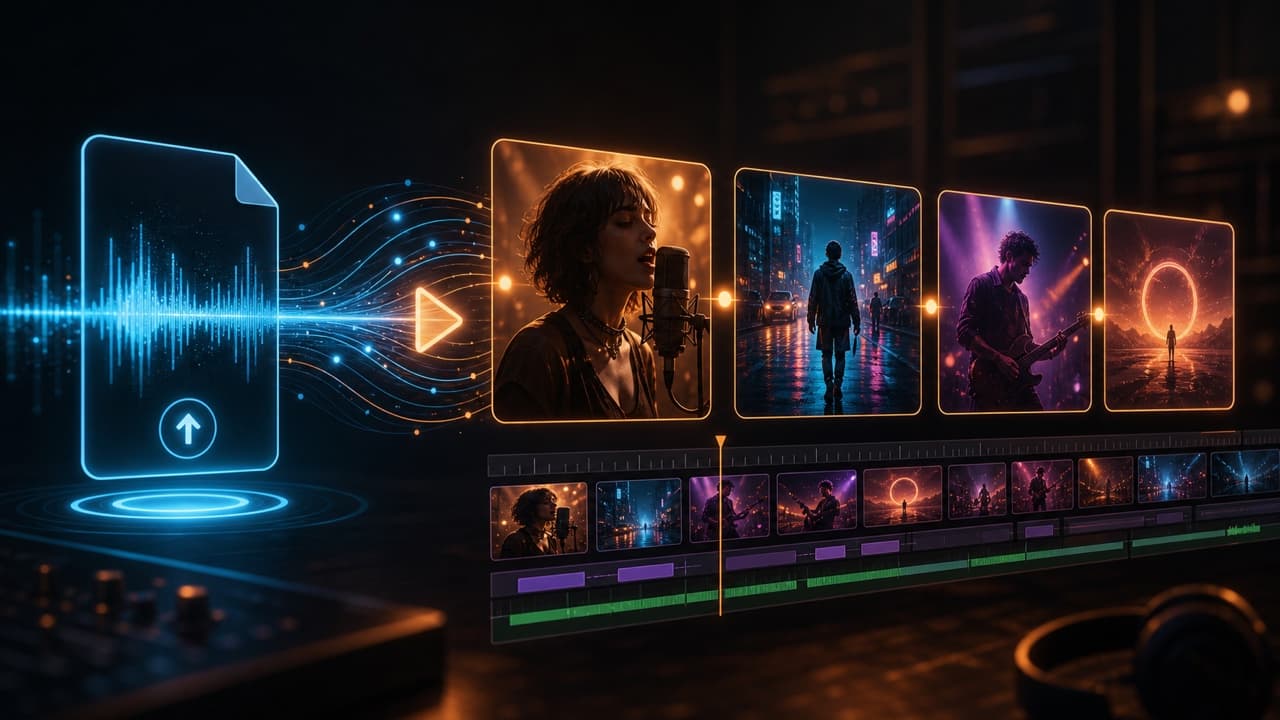
Turn a Suno song into a complete AI music video.
Paste a public Suno link or upload the exported audio. VibeMV imports the track—and lyrics when Suno exposes them—then helps you build scene-based visuals, optional lip-sync, and 16:9 or 9:16 exports instead of a flat loop.
Quick Answer: How Do You Make a Music Video with Suno?
Use Suno to create the song, then use a music-video tool for the video. The fastest path is to paste a public Suno link on /suno-to-music-video. You can still export the MP3 and upload manually in the workspace if import fails.
That distinction matters because creators use Suno video generator to mean different things: a cover-art video, a visualizer, a lyric video, a short social clip, or a full AI music video. This page is for the last case: you want the song to feel like a real MV, with multiple scenes and an editable structure.
If your song was not made in Suno, use the broader song-to-video AI workflow. If your main question is file format, upload limits, or MP3/WAV handling, read AI music video from audio file.
You Have the Song. Now Build the Video Around It.
A full MV needs visual sections, not one repeated background. Use VibeMV when the track should move through shots, settings, and edits.
Start with the chorus, drop, or clearest lyric. If that section works, the longer video has a direction worth extending.
Some lines need a performer. Other parts work better as atmosphere, movement, transition, or story shots.
A YouTube release, a vertical hook, and a teaser do not need the same framing. Pick the output before you render.
Suno gives you the song. VibeMV gives you the video workflow around that song: scene planning, Scene shots, optional lip-sync shots, short tests, and editing before export.
Before You Render a Full Song, Look for This
Do not judge a full-song idea from a vague prompt. Judge it from a short rendered section. The sample here is not a Suno benchmark and does not claim to use a Suno track; it is a first-party VibeMV example of the kind of scene you should be trying to prove before extending a video.
- Does the frame look like it belongs in an MV?
- Does the subject fit the song's energy?
- Would you want more shots in this direction?
VibeMV short AI music-video sample: an 11-second performance-style MV scene with audio.
For more public outputs, open AI music video examples before rendering your own Suno song. Use the examples to judge whether you want a performance-led MV, a lip-sync section, a dance hook, or a more abstract visual direction.
A Practical Suno-to-MV Workflow
Open /suno-to-music-video and paste a public Suno share URL. VibeMV imports audio and lyrics when Suno exposes them on the page.
If import fails or the link is private, download MP3 or WAV from your Suno library and upload. VibeMV accepts MP3, WAV, AAC, M4A, FLAC, and AIFF from 3 seconds to 7 minutes and up to 100 MB.
Start with the hook, chorus, drop, or clearest vocal line. A short section tells you whether the visual direction is worth extending.
Use Scene shots for mood, movement, and instrumental moments. Use lip-sync when a visible performer should carry the vocal.
Replace weak scenes, adjust prompts, and keep the shots that actually fit the Suno song instead of treating the first render as final.
Use 16:9 for YouTube, websites, and release pages. Use 9:16 for TikTok, Instagram Reels, YouTube Shorts, and vertical teasers.
When VibeMV Is the Right Tool
Full Suno MV Best when the song needs scenes, pacing, and editing
Use VibeMV when you want a complete music video from the exported Suno audio, with optional lip-sync sections and shot-level edits.
Social hook Best for TikTok, Reels, and Shorts
Render a 9:16 chorus, drop, lyric line, or vocal moment first. This is the fastest way to prove the visual direction.
Simple audio post Best when you only need cover art plus sound
Use an MP3-to-video route if the goal is a basic uploadable video file, not generated scenes.
Visualizer Best for waveform, spectrum, or cover-art motion
Use a visualizer when motion graphics are enough and you do not need a full MV structure.
Lyrics or Canvas Best for readable words or a short release loop
Use lyric-video or Canvas-style tools when the asset is narrow and the song does not need generated scenes.
Suno Hooks vs a Full Music Video
Suno Hooks combines a Suno song with uploaded video for short-form content inside the Suno community. It is useful for quick promotion and community posts, but it is not the same job as a release-ready music video with multiple generated scenes, section review, optional lip-sync, and 16:9 or 9:16 export.
Use Suno’s native tools when you need a fast in-app teaser. Use VibeMV when you need an editable MV you can publish to YouTube, TikTok, or a release page.
If you only need synced lyrics on screen, use the free lyric video maker—not a full MV workflow.
Task Pages and Comparisons
Task pages and established comparison guides for common Suno-adjacent jobs:
| Page | Best for |
|---|---|
| /suno-to-music-video | Paste a Suno link and build a full MV |
| /blog/udio-song-to-music-video | Understand why public Udio links cannot currently be imported into VibeMV |
| /blog/vibemv-vs-freebeat | Compare VibeMV vs Freebeat for finished songs |
| /blog/freebeat-alternatives-ai-music-video-generators | Compare broader Freebeat alternatives |
| /blog/vibemv-vs-neural-frames | Compare VibeMV vs Neural Frames for MV workflow vs audio-reactive control |
For a longer tutorial, stay on this page. For a faster paste-link CTA, open /suno-to-music-video first.
The honest line is simple: use VibeMV when you want a Suno music video generator workflow, not just a lightweight upload asset. A visualizer can be useful, but it is not the same job as building a complete MV around the song.
Where to Start by Song Type
Start with a 10-15 second chorus test and one clear visual world.
Test a slower or clearer vocal line with lip sync before extending.
Use Scene shots around the drop, mood shift, pacing, and motion.
Use a 16:9 scene sequence to test whether the visual story can hold.
Use a 9:16 vertical clip and lead with the fastest payoff section.
Export and Rights Checklist
Keep this part simple: VibeMV is not a rights workaround. Use public Suno link import only for songs you can access and are allowed to use. If the link is private, unavailable, or missing audio metadata, export the song from your own Suno account and upload the audio file manually.
Suno's help center says songs can be downloaded from the Library menu and describes MP3 audio downloads for free users and WAV downloads for Pro or Premier users. Use WAV when your plan gives you access and the video is for an important release. Use MP3 or M4A for early visual tests.
There are two rights questions:
- Can you use the Suno song for your planned release?
- Can you use the VibeMV video commercially?
Suno's help center says Pro or Premier subscribers own songs created while subscribed and retain commercial-use rights. It also says Basic/free songs are for personal, internal, and non-commercial use under Suno's terms. VibeMV has its own commercial-use boundary: free credits are useful for exploration and personal-use tests, while commercial use starts with paid subscriptions.
This is practical release hygiene, not legal advice. If the video is for a label, client, paid ad, or serious commercial campaign, check the current terms and get legal review when needed.
Credit and Format Facts
| Item | VibeMV support | Practical advice |
|---|---|---|
| Supported audio | MP3, WAV, AAC, M4A, FLAC, AIFF | Use the cleanest official Suno export you have |
| Track length | 3 seconds to 7 minutes | For longer songs, start with a shorter edit or section |
| Upload size | Up to 100 MB | Compress only if the file is too large |
| Output | 16:9 or 9:16 MP4 | Pick the destination before rendering |
| Default resolution | 720p | Optional 2K upscale is available where supported |
| Base/default generation | 2 credits per generated second | Images, regeneration, upscale, or higher-cost models may add credits |
| Free starter credits | 50 one-time credits | Best used for a short 10-15 second proof section |
A 15-second base test is about 30 video credits before starting images or regeneration. A 3-minute base song is about 360 video credits before extras. The safe workflow is to test the hook first, then spend credits on the full Suno song only after the visual direction works.
Official Sources Reviewed
This page was checked against Suno's official help and terms on July 29, 2026:
- Suno: How do I download my songs?
- Suno: Audio uploads
- Suno: Create Hooks
- Suno: Does Suno own the music I make?
- Suno Terms of Service
Suno and VibeMV can change product limits and terms. Check the official pages before planning a commercial release around a specific rule.
Related Guides
- AI music video examples — inspect real VibeMV output before spending credits on a full-song render
- Suno to music video — task landing page with link import
FAQ
What is the best Suno music video generator workflow?
Paste a public Suno link on /suno-to-music-video to import audio and lyrics, choose a visual direction, test the strongest hook or vocal section, then build the full MV with editable scenes, optional lip-sync shots, and 16:9 or 9:16 output. Manual export remains the fallback when import fails.
Can Suno make music videos?
Suno has Hooks for short-form content that combines your song with uploaded video inside the Suno community. If you want a longer exported MV with editable scenes, use a music-video workflow such as VibeMV after the song is finished.
Can I turn a Suno song into a full AI music video?
Yes. VibeMV accepts public Suno song links when the page is reachable, or Suno audio exports such as MP3 or WAV when link import fails. It reads the song structure and lets you generate Scene shots, lip-sync sections, vertical clips, or a longer 16:9 music video.
Do I need a Suno link or an audio file?
Either works. Paste a public Suno share link on /suno-to-music-video to import audio and lyrics when available. Manual MP3, WAV, AAC, M4A, FLAC, or AIFF upload remains the fallback when a link is private, unavailable, or missing audio metadata.
Can I use a Suno song commercially in a VibeMV video?
Check both platforms. Suno's help center says Pro or Premier subscribers own songs created while subscribed and retain commercial-use rights, while Basic/free songs are for personal, internal, and non-commercial use under Suno's terms. VibeMV commercial use starts with paid subscriptions, so keep the Suno rights check and VibeMV plan check separate.
Is this different from a Suno visualizer?
Yes. A visualizer adds motion, waveform, cover art, or a short loop. A full AI music video has multiple scenes, section-level direction, optional lip sync, and shot-by-shot editing around the song.
How long can my Suno song be?
VibeMV currently supports audio files from 3 seconds to 7 minutes and up to 100 MB. For longer Suno tracks, start with a shorter edit or the strongest section first.
How many VibeMV credits does a Suno music video use?
Base/default generation starts at 2 credits per generated second before starting images, regeneration, upscale, or higher-cost models. A 15-second test is about 30 video credits before extras, while a 3-minute base song is about 360 video credits before extras.
More Posts

DistroVid Spotify Music Video Guide (2026)
Review DistroVid pricing, Spotify eligibility, file requirements, delivery steps, timing, rights, and the cases where another route is better.
How to Upload a Music Video to Spotify
Choose the right Spotify delivery route, follow the upload steps, and prepare a music video with the correct format, rights, and metadata.
Spotify Canvas vs Music Video: Which Do You Need?
Compare Spotify Canvas and full music videos by purpose, format, access, upload path, and effort so you can make the right release asset first.